Ever had a customer say they’ve paid, but the invoice still shows as unpaid in QuickBooks? Or found payments in your bank account that haven’t been matched to the right invoices? These issues can make it hard to keep customer balances accurate. QuickBooks accounts receivable tools help small businesses track open invoices, record payments, and see which customers still owe money.
But keeping your AR records accurate takes more than entering invoices and payments. You also need to review aging reports, apply customer credits, and follow up on past-due invoices. In this guide, we’ll cover how to manage accounts receivable in QuickBooks and share practical ways to keep your records in order.
What You Will Learn From This Blog
- What accounts receivable management in QuickBooks involves.
- How to set up customer accounts, invoices, and payment terms.
- How to record payments and manage open invoices.
- Which QuickBooks reports help track unpaid balances.
- Best practices for reducing late payments and AR errors.
- When small businesses may need outside AR support.
What Is Accounts Receivable Management in QuickBooks?
Accounts receivable (AR) is the money customers owe a business for goods or services bought on credit. When a business sends an invoice and allows the customer to pay at a later date, the amount due is recorded as accounts receivable.
QuickBooks accounts receivable management involves tracking these unpaid amounts from the time an invoice is sent until the payment is received and recorded. QuickBooks helps business owners view open invoices, check customer balances, record payments, and review aging reports.
For example, a small consulting firm sends a client an invoice for $2,000 with payment due in 30 days. Until the client pays, the $2,000 remains part of the firm’s AR balance. Once the payment is received and matched to the invoice, the open balance is reduced.
Good AR management helps businesses:
- Keep track of money owed by each customer.
- Spot late payments before they become a bigger issue.
- Maintain accurate customer balances.
- Plan cash flow based on expected payments.
- Reduce errors in monthly financial reports.
How to Set Up Accounts Receivable in QuickBooks
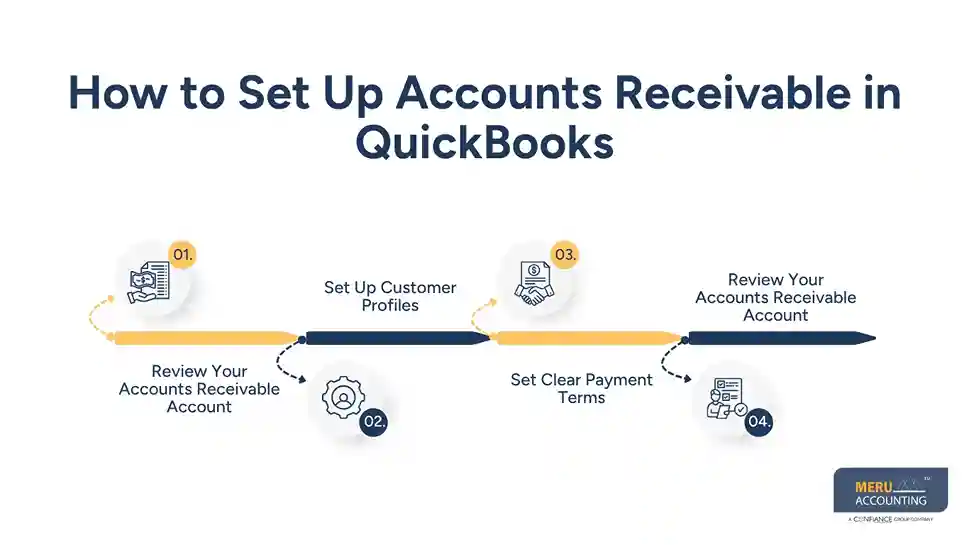
A good setup makes it easier to manage invoices and track payments as your business grows. Before you start using QuickBooks for AR, review these key settings.
1. Review Your Accounts Receivable Account
QuickBooks uses an Accounts Receivable account to track unpaid customer invoices. In most setups, this is a built-in account in the chart of accounts.
Check that the account is active and set up for customer transactions. Avoid creating extra AR accounts unless your accountant has a clear reason to do so.
2. Set Up Customer Profiles
Add each customer to your QuickBooks records. Include their business name, contact details, billing address, and payment terms.
Keep customer details up to date. This helps prevent billing errors and makes it easier to contact the right person when an invoice is due.
3. Set Clear Payment Terms
Set payment terms based on your business needs and customer agreements. Common terms include:
- Due on receipt: Payment is due as soon as the invoice is sent.
- Net 15: Payment is due within 15 days.
- Net 30: Payment is due within 30 days.
- Net 60: Payment is due within 60 days.
Make sure the terms on each invoice match the agreement with the customer.
4. Set Up Invoice and Payment Options
Add your logo, business details, payment terms, and due dates to your invoice template. You can also enable suitable online payment options, based on your QuickBooks plan and payment setup.
A clear invoice should show what the customer bought, the amount due, the due date, and how to pay.
How to Manage Accounts Receivable in QuickBooks: Step-by-Step
Once the setup is complete, follow a consistent process for each customer invoice.
Step 1: Create and Send Customer Invoices
Go to the invoice section in QuickBooks and select the option to create a new invoice. Choose the customer, add the products or services sold, enter the amount, and set the payment terms.
Review the invoice before sending it. Check the customer name, billing details, amount, and due date. A wrong invoice can delay payment, even when the customer is ready to pay.
Step 2: Record Customer Payments
When a customer pays, record the payment in QuickBooks. Select the right customer and link the payment to the open invoice.
For example, if a customer pays $1,000 toward a $1,500 invoice, record the $1,000 payment against that invoice. The remaining $500 should stay open until the rest is paid.
Step 3: Match Payments With Open Invoices
Check that each payment is linked to the right invoice. This step is key when a customer has more than one open bill.
If a payment is recorded but not applied to an invoice, QuickBooks may still show the bill as unpaid. Review unapplied payments and customer credits to keep balances correct.
Step 4: Review Overdue Invoices
Check your open invoice list on a regular basis. Look at due dates and sort bills by how long they have been unpaid.
Contact customers when a bill is past due. A polite reminder soon after the due date can help resolve a delay before it grows.
Step 5: Manage Credits, Refunds, and Partial Payments
Some customers may pay less than the full amount, ask for a refund, or have a credit from an earlier sale. Record each item in the right way and apply credits to the right invoices.
Don’t write off a balance just to clear an open bill. Check the reason for the short payment and get approval before making any changes to the account.
How to Track Outstanding Invoices Using QuickBooks Accounts Receivable Reports
Reports help small business owners see which customers owe money and how long invoices have been open. The right QuickBooks accounts receivable reports can also help you plan follow-ups and review collection trends.
Here are some useful reports to check:
QuickBooks Report | What It Shows | How to Use It |
Accounts Receivable Aging Summary | Total unpaid amounts by aging period | Find customers with past-due balances |
Accounts Receivable Aging Detail | Open invoices and their age | Review each overdue bill |
Open Invoices Report | Invoices that are not fully paid | Track bills that still need payment |
Customer Balance Summary | Amount owed by each customer | Spot customers with high open balances |
How to Use AR Aging Reports
An AR aging report groups unpaid invoices by how long they have been due. A common format uses these periods:
- Current: Not yet due.
- 1–30 days past due: A recent delay that needs a reminder.
- 31–60 days past due: A stronger follow-up may be needed.
- 61–90 days past due: Review the reason for the delay and agree on a payment plan if needed.
- Over 90 days past due: Assess the risk of non-payment and decide on the next step.
Use these reports at least once a week if your business has a high volume of invoices. For smaller businesses with fewer customer bills, a monthly review may be enough, though overdue balances should still be checked more often.
optional anymore
on running the business
Best Practices for Improving Accounts Receivable Management in QuickBooks
Using QuickBooks is only one part of good AR control. Your team also needs clear rules for billing, payment tracking, and customer follow-ups.
1. Send Invoices as Soon as Work Is Done
Don’t wait until the end of the month to bill for work that has been done. Send invoices soon after a sale or job is complete. This gives customers more time to review and pay them.
2. Set Clear Payment Terms Before Work Begins
Agree on due dates and payment rules before you start work. Put these terms in writing so there is less room for doubt later.
3. Use Invoice Reminders
Set up payment reminders where your QuickBooks plan allows them. Send a note before the due date, on the due date, and after a bill becomes late.
Keep the tone polite and clear. Include the invoice number, amount due, and payment link or method.
4. Follow Up Based on Invoice Age
Not all late bills need the same action. A bill that is five days late may need a simple note, while one that is 60 days late may need a call or a clear payment plan.
Use AR aging reports to set your follow-up order.
5. Review Customer Balances Often
Check customer balances and look for old credits, duplicate payments, or bills that remain open by mistake. Fix these issues before closing the books for the month.
6. Reconcile AR With the General Ledger
Your AR detail should agree with the Accounts Receivable balance in the general ledger. Review any gaps before you close the month.
This check helps find missing entries, wrong payment links, and other errors that can affect your reports.
Common QuickBooks Accounts Receivable Problems and How to Fix Them
Even with a good process, AR issues can occur. Here are some common problems and ways to fix them.
Common Problem | Why It Happens | How to Fix It |
Invoice still shows as unpaid after payment | Payment was not linked to the invoice | Review the payment and apply it to the right bill |
Duplicate customer payments | A payment was entered more than once | Check bank records and remove or reverse the duplicate entry |
Unapplied customer payments | Payment was saved but not matched to an invoice | Review unapplied cash and link it to the right open bill |
Wrong AR balance | Entries were changed, missed, or posted to the wrong account | Review the AR detail and general ledger |
Customer credit not applied | Credit memo was not linked to an open invoice | Check the credit and apply it to the right customer bill |
Before changing any entry, check the source record and bank activity. Don’t delete a payment or change an old entry without knowing how it will affect the books.
How Meru Accounting Helps QuickBooks Users Manage Accounts Receivable
Keeping up with invoices, payment records, and customer follow-ups can take time, especially when your business has many open bills. If your team is spending more time fixing AR records than running daily work, outside help may be worth a look.
Meru Accounting offers outsourced accounts receivable services to help businesses keep customer balances up to date and improve their billing and collection process.
Our AR support can include:
- Invoice Processing: Prepare and review customer invoices to help reduce billing errors.
- Payment Posting: Record customer payments and apply them to the right invoices.
- AR Reconciliation: Review customer balances and match AR records with the general ledger.
- Aging Report Review: Track open and overdue invoices to help your team plan follow-ups.
- Payment Follow-Ups: Help manage reminders and customer payment queries.
- AR Reporting: Share clear reports that show open balances, overdue bills, and collection trends.
Our team works with QuickBooks, Xero, and Zoho Books, based on your business needs. With outsourced accounts receivable services, you can get help with routine AR tasks without adding a full-time in-house team.
Whether you need help with daily invoice tracking or monthly AR reviews, Meru Accounting can support your process and help you keep your records in order.
Our Expert Insight
A low accounts receivable balance doesn’t always mean your business has a strong collection process. It may also mean you’re offering limited credit to customers and missing potential sales. That’s why we recommend looking beyond the total amount owed.
One useful measure is Days Sales Outstanding (DSO), which shows how long it takes, on average, to collect customer payments. If DSO keeps rising while sales remain steady, review your credit terms, billing cycle, and collection process.
When reviewing QuickBooks accounts receivable, compare DSO with your AR aging reports over several months. This gives you a clearer picture of collection performance and helps you spot changes before they affect your cash flow.
Key Takeaways
- QuickBooks helps small businesses track invoices, payments, and open customer balances.
- Set clear payment terms and send invoices soon after work is done.
- Use AR aging reports to find overdue bills and plan follow-ups.
- Match payments and credits to the right invoices to avoid wrong balances.
- Review AR records and reconcile them with the general ledger each month.
- Consider outside AR support when invoice tracking and payment follow-ups take too much staff time.
FAQs
This may happen due to unapplied payments, duplicate entries, credit memos, or transactions posted to the wrong account. Check your AR Aging Detail report and general ledger.
It varies by industry and payment terms. Compare your ratio with previous periods to see whether your business is collecting payments faster or slower.
Use the appropriate bad debt write-off process to clear a confirmed uncollectible balance. Make sure the adjustment follows your accountant’s guidance.
QuickBooks offers customer balance and overdue invoice tracking, but credit limit features vary by product and plan. You may need a separate credit review process.
Yes. An AR team can help speed up invoicing, manage payment follow-ups, and resolve billing issues, which can reduce collection delays.
optional anymore
on running the business