QuickBooks for ecommerce can make payment payout tracking easier when sales, fees, refunds, and deposits are recorded in the right way. An online store may report $20,000 in sales, but only $19,350 may reach its bank account. The $650 gap could come from payment fees, refunds, disputes, or other adjustments.
This is why payout reconciliation is more than checking whether a bank deposit looks right. With QuickBooks for ecommerce, the aim is to trace the net payout back to the sales and costs that created it. QuickBooks Online’s reconciliation process compares recorded transactions with bank activity and shows a $0 difference when the account is fully reconciled.
For ecommerce sellers, this process gives a clearer view of cash received, payment costs, refunds, and outstanding differences. It also gives a better basis for judging the best online accounting software for ecommerce.
What You Will Learn From This Blog
- How QuickBooks for ecommerce handles payment processor payouts.
- Why gross sales and bank deposits are often different.
- How to connect ecommerce and payment data with QuickBooks.
- How to reconcile a payout from the processor report to the bank.
- How to find missing, duplicate, or wrongly mapped transactions in QuickBooks for ecommerce.
- How to manage payouts when you use more than one payment processor.
- What to check when comparing the best online accounting software for ecommerce for your store.
QuickBooks for Ecommerce: Understanding Payment Processor Payouts
Gross Sales and Net Payouts are Different
A customer may pay $100, but the processor may take a $3 fee before sending the money to your bank. Your sales report shows $100, while your bank may show $97.
QuickBooks for ecommerce needs to record the sale and the fee correctly so the net deposit can be traced back to the gross sale.
Payment Fees Reduce the Amount Received
Card fees, processing charges, dispute costs, and other fees can reduce the amount sent to your bank. These costs should not simply be treated as lower sales.
The best online accounting software for ecommerce setup should show gross sales and payment costs as separate figures.
Refunds Can Reduce a Payout
Suppose your store makes $5,000 in sales but issues a $200 refund before the processor sends its payout. The amount received may be based on the adjusted balance.
QuickBooks for ecommerce should reflect the refund so the payout can be traced without forcing two different figures to match.
Payout Dates May Not Match Sale Dates
An order can be placed today while the related funds reach your bank later. Weekends, holidays, processor rules, and payout schedules can create a gap between the sale date and deposit date.
This is normal and does not by itself mean the books are wrong.
One Payout Can Contain Many Transactions
A processor may group many orders, refunds, fees, and adjustments into one bank deposit. Shopify’s QuickBooks connector, for example, can bring sales, refunds, fees, and payout details into QuickBooks and track funds before the final deposit.
That grouped structure is central to QuickBooks for ecommerce payout reconciliation.
Why Ecommerce Payout Reconciliation Matters For Accurate Financial Records
Separates Sales From Cash
Sales show what customers paid for orders. Cash shows what actually reached the bank after deductions and adjustments.
The best online accounting software for ecommerce should make this difference easy to review rather than treating gross sales and net deposits as one figure.
Keeps Payment Fees Visible
If $10,000 in sales produces a $9,700 payout, the $300 difference needs an explanation. In many cases, payment fees account for part or all of the gap.
With QuickBooks for ecommerce, recording those fees separately gives a clearer view of the real cost of collecting customer payments.
Catches Missing Transactions
A missing refund, fee, or payout can leave a difference between QuickBooks and the bank. A duplicate entry can create the same problem in the opposite direction.
QuickBooks notes that missing or duplicate transactions are common causes of reconciliation differences.
Keeps Cash Reporting Reliable
Cash figures affect reports used to review business performance. If payouts are recorded twice, income or cash may look higher than it is.
The best online accounting software for ecommerce payouts should include regular checks of payout data, bank deposits, and transaction status.
Creates a Clear Review Trail
A payout report can show the sales, refunds, fees, and adjustments that make up the final deposit. Keeping this source data gives you something to check when a number does not match.
That makes QuickBooks for ecommerce more useful for review and audit work.
How to Connect Payment Processors With QuickBooks
Check the available connection
First, check whether your ecommerce platform or payment processor has a QuickBooks connector. QuickBooks currently offers ecommerce connections for several platforms, while the exact features vary by connector.
This is an important check when choosing the best online accounting software for ecommerce.
Choose the correct bank account
Select the bank account where the processor sends payouts. If the wrong account is selected, the imported deposits may not match the actual bank activity.
For QuickBooks for ecommerce, the bank account and payout account should be checked before regular syncing begins.
Review the account mapping
Sales, fees, refunds, taxes, and adjustments may need different accounts. Review these settings before importing a large volume of transactions.
QuickBooks states that some ecommerce connectors can create or map accounts for fees, adjustments, reserves, disputes, and other items.
Set a clear starting date
Choose a date from which new transactions should be imported. If the same transactions are already in QuickBooks, importing them again can cause duplicates.
A clean starting point makes QuickBooks for ecommerce easier to reconcile.
Test one payout first
Do not assume the connection is correct just because the data appears in QuickBooks. Pick one completed payout and compare its gross sales, fees, refunds, and net amount with the processor report.
This small test can reveal mapping problems before they spread across several weeks.
How to Reconcile Payment Processor Payouts in QuickBooks
Start With the Payout Report
Begin with the processor’s payout report for the date you want to check. Note the gross amount, refunds, fees, adjustments, and final payout.
This gives QuickBooks for ecommerce a clear source against which the bank deposit can be checked.
Match the Underlying Transactions
Review the orders included in the payout. Confirm that sales, refunds, and fees have reached QuickBooks and have the correct values.
The best online accounting software for ecommerce should let you trace the final deposit back to its source transactions.
Check the Net Payout
Add the relevant sales and subtract refunds, fees, and other valid deductions. The result should agree with the processor’s net payout.
For example, $8,000 in sales minus $240 in fees and $160 in refunds gives a $7,600 payout.
Review Payout Timing
Check the processor’s payout date against the date when the money reached the bank. A sale may be recorded before the related funds are sent to the bank.
QuickBooks for ecommerce should reflect this timing difference instead of treating a normal delay as a missing transaction.
Check for Missing or Duplicate Entries
Compare the processor report with QuickBooks to make sure each sale, refund, fee, and payout is recorded once. A missing entry can leave a difference, while a duplicate can make the payout appear too high.
This check is also important when using the best online accounting software for ecommerce across several sales channels.
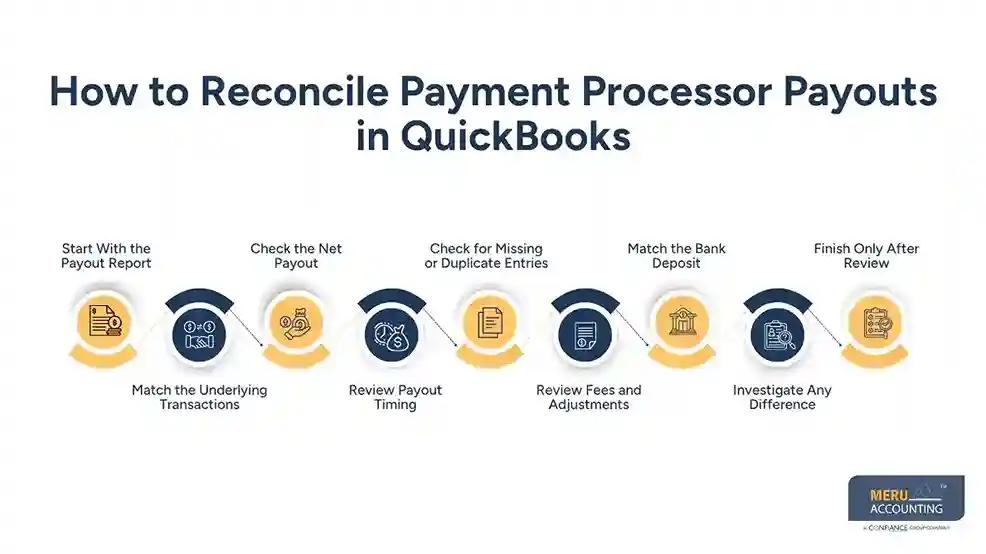
Review Fees and Adjustments
Check whether processing fees, dispute charges, reserves, or other adjustments have been included in the payout calculation. These items can change the final amount sent to the bank.
QuickBooks for ecommerce should record these items in the correct accounts so the payout can be traced without changing the actual sales value.
Match the Bank Deposit
Find the $7,600 deposit in the bank feed or bank statement and match it to the related payout in QuickBooks. Avoid creating another deposit if the connector already created one.
QuickBooks says its Shopify connector can create the payout deposit and link the related sales, refunds, and fees.
Investigate Any Difference
If the payout and bank deposit do not match, calculate the exact difference before making any changes. Check for fees, refunds, timing gaps, missing transactions, or duplicate entries.
The best online accounting software for ecommerce should make it easier to find the source of the difference rather than simply forcing the amounts to match.
Finish Only After Review
If the figures agree, complete the reconciliation. QuickBooks states that the reconciliation difference should reach $0.00 before the account is finished.
With QuickBooks for ecommerce, a zero difference should be the result of correct records, not a number created just to close the reconciliation.
optional anymore
on running the business
How To Fix Common QuickBooks Ecommerce Reconciliation Differences
Missing Payment Fees
If the bank receives less than the gross sales amount, check the processor report for fees. A missing fee can explain a small difference.
In QuickBooks for ecommerce, record the fee in the proper expense account rather than reducing the sales figure.
Duplicate Payout Entries
Check whether the payout was imported by the connector and then entered again by hand. Two deposits for one payout can inflate the bank balance.
The best online accounting software for ecommerce still needs careful review when both automatic and manual entries are used.
Unrecorded Refunds
A refund may appear in the processor report but not in QuickBooks. This can make the payout seem too low when compared with recorded sales.
Find the original sale, confirm the refund amount, and check how the processor treated it.
Timing Differences
A sale recorded today may not be part of the bank payout until a later date. Do not change the sale simply because the cash has not arrived.
QuickBooks for ecommerce should reflect the actual transaction date and payout timing.
Unmapped Adjustments
Processors may include adjustments, reserves, disputes, or other items. If these are not mapped, the payout may not agree with the bank.
QuickBooks notes that some payout adjustments may need an account selected during review.
How To Manage Multiple Payment Processors In QuickBooks
Give Each Processor a Clear Identity
If you use Shopify Payments, PayPal, Stripe, or another processor, keep the transaction source clear. This makes it easier to trace each deposit.
A clear setup is especially useful when using QuickBooks for ecommerce across several sales channels.
Reconcile Each Processor Separately
Do not combine all processor payouts into one large review. Check each processor against its own reports and bank deposits.
This approach also makes the best online accounting software for ecommerce easier to assess because you can see whether the system handles each channel well.
Track Fees by Processor
Different processors may charge different fees. Keeping them separate can show the cost of each payment channel.
This gives QuickBooks for ecommerce more useful data for profit and cost review.
Watch For Cross-Channel Refunds
A refund from one channel should not be linked to the payout from another channel. Check the processor, order number, and transaction date before making changes.
Good source tracking is important when several stores feed into one accounting file.
Keep Payout Reports
Save the processor reports used for each reconciliation period. Keep them with bank statements and notes about unusual items.
This gives the best online accounting software for ecommerce processes a clear audit trail when an old difference needs review.
How Meru Accounting Helps Manage Ecommerce Payout Reconciliation
Review Payout Records
Meru Accounting provides ecommerce accounting services that include transaction review, payout reconciliation, and financial reporting.
Our team can review sales, fees, refunds, and bank deposits to find gaps in the payout flow.
Check Account Mapping
Incorrect account mapping can make a correct payout look wrong in the books. Meru Accounting can review how sales, fees, refunds, taxes, and adjustments are posted.
This can make QuickBooks for ecommerce records easier to review.
Manage Multiple Channels
Selling through several channels can create more payout reports and more bank deposits to check. Meru Accounting can organize the review process by channel and processor.
This gives each payout a clear source and trail.
Review Reconciliation Differences
A difference should have a reason. Meru Accounting can review missing transactions, duplicate entries, timing gaps, fees, refunds, and adjustments instead of simply forcing the figures to match.
Our Expert Perspective
Our view is simple: start with the processor payout report, then trace that amount into QuickBooks and finally to the bank. The bank shows what arrived, but the processor report shows what made up that amount.
That approach makes QuickBooks for ecommerce more useful for real payout control and gives business owners a clearer view of where their cash went.
Key Takeaways
- QuickBooks for ecommerce can record and organize sales, fees, refunds, payouts, and deposits when the setup is correct.
- Gross sales do not always equal the amount deposited into the bank.
- Always check processor fees, refunds, disputes, and adjustments before treating a payout difference as an error.
- Match each processor payout with the related QuickBooks transactions and bank deposit.
- Keep different payment processors and sales channels easy to identify.
- Save payout reports and bank statements for each reconciliation period.
- The best online accounting software for ecommerce should fit your sales channels, transaction volume, integrations, reporting needs, and reconciliation process.
- A $0 reconciliation difference should come from accurate records, not an artificial adjustment.
FAQs
Compare the processor report with QuickBooks sales, fees, refunds, and the final bank deposit to find and clear any difference.
The payout may differ because of payment fees, refunds, chargebacks, timing gaps, adjustments, or missing transactions.
Record payment processor fees separately from sales so the net payout can be matched correctly with the bank deposit.
Check the payout amount and date against the bank deposit, then match the correct transaction instead of creating a duplicate entry.
Review each processor separately by checking its sales, fees, refunds, payouts, and related bank deposits.
optional anymore
on running the business