

Getting started with QuickBooks might seem hard at first, especially when you’re trying to manage your accounts smoothly. One common challenge for new users is managing undeposited funds in QuickBooks during the deposit process.
To avoid confusion, it’s important to understand how pending deposits work in QuickBooks and how proper QuickBooks banking practices help keep payment records organized. These payments act like a temporary record until you’re ready to group and deposit them. This guide breaks it down in simple steps to help you track, organize, and reconcile this account without stress.
What You Will Learn From This Blog
- Understand what undeposited funds in QuickBooks are and why they are used for managing customer payments.
- Learn how QuickBooks handles received payments before they are deposited into a bank account.
- Identify common payment record issues like duplicate entries, missing deposits, and incorrect grouping.
- Explore how to check, reconcile, and clear old transactions in the undeposited funds account.
- Learn best practices to prevent future payment tracking errors and maintain accurate QuickBooks records.
- Understand how professional bookkeeping support from Meru Accounting helps manage pending payment records efficiently.
What are Undeposited Funds in QuickBooks?
When you get paid by a customer, the money does not always go straight to your bank. Instead, it goes into the Undeposited Funds account in QuickBooks. This works as a holding spot for payments you have received but have not yet deposited. It helps you track multiple payments before you make a single bank deposit.
Using payments awaiting deposit makes sure your bank deposits match the recorded payments in QuickBooks. It also reduces mistakes when handling checks, cash, or online payments.
Why Does QuickBooks Do This?
QuickBooks uses this method to track which payments have been received but not yet taken to the bank, supporting accurate QuickBooks banking records and reconciliation. It matches your books with your bank deposits. This is key for clean records.
You received three checks today, but only deposit them in the bank tomorrow. QuickBooks holds these in “undeposited funds” until you group and deposit them together. This helps you match your bank feed and books.
Why QuickBooks Uses the Undeposited Funds Account
The QuickBooks Undeposited Funds account exists to prevent confusion. It allows you to collect multiple payments and record them as one deposit.
Keeps Your Records Clear
This account helps prevent payment tracking mistakes by keeping received payments separate until they are deposited.
Without using a temporary holding account, each payment may be recorded individually as a deposit, which can create differences between QuickBooks records and the actual bank deposit.
Helps Reconcile Easier
This system makes it easier to do monthly bank reconciliations. It links grouped payments to a single deposit and improves overall QuickBooks banking accuracy.
Supports Accurate Reporting
Grouped deposits allow your income and bank balances to reflect real-time numbers. This improves the accuracy of your books and builds trust.
Improves Workflow for Teams
If you have multiple staff handling payments, this account helps you manage deposits. It brings better control and visibility to your process.
Common Issues with Undeposited Funds in QuickBooks
Sometimes, QuickBooks pending payment records build up when payments are not moved to a bank deposit, creating challenges in maintaining clean QuickBooks banking records. If not resolved, this can cause incorrect reports and unmatched balances.
Unrecorded Bank Deposits
Some users receive payments but forget to record the deposit. These payments stay as uncleared transactions and never appear in the bank account.
Duplicate Payment Entries
You might post the same customer payment twice by mistake. This skews your income and leaves duplicate entries in the system.
Payments Left Undeposited
Some payments sit in the payment holding account for weeks or months. This creates confusion and inaccurate income reports.
Incorrect Deposit Grouping
Deposits must match what goes to the bank. Mixing payments that weren’t deposited together leads to mismatches during reconciliation.
Misuse of Bank Accounts
Sometimes users choose the wrong bank account when creating a deposit. This sends funds to the wrong place in QuickBooks.
Manual Journal Entries
Creating manual journal entries to move payments without linking them to a bank deposit can disrupt the entire process. It may also create incorrect balances that are harder to fix later.
Reporting and Reconciliation Problems
When pending payments are not cleared correctly, income and bank reports may show incorrect totals. Reconciliation can become a time-consuming task.
You may see payments remaining in the payment holding account for weeks or months. Your income reports may also appear higher than expected. Reconciling can become more difficult each month.
How to View and Access the Undeposited Funds Account
If you’re unsure whether you have issues with QuickBooks Undeposited Funds, reviewing the account helps maintain accurate QuickBooks banking and payment records.
Steps to Check Undeposited Funds
- Go to the Chart of Accounts.
- Look for “Undeposited Funds.”
- Click “View Register.”
- Look through the list for payments that haven’t been matched.
- Use filters to find old or ungrouped entries.
What to Look For
Check if any payments are sitting there too long. You should only see recent payments that are about to be deposited. If you see payments older than 7–10 days, it may point to an issue.
optional anymore
on running the business
Benefits of Properly Managing Undeposited Funds in QuickBooks
Accurate Bank Balances in QuickBooks
Managing undeposited funds keeps your QuickBooks balances matched with the bank and supports better QuickBooks banking management. This helps maintain clear books. It also avoids confusion when checking cash.
Clear Records for Audits
Well-organized payment holding records create a complete history of all received payments. Auditors can review transactions faster, saving time and reducing errors.
Simplified Deposit Process
Tracking pending deposits allows businesses to combine multiple customer payments into one deposit entry. This creates a smoother workflow, saves time, and reduces the chances of recording mistakes.
Reduced Risk of Errors in Financial Reporting
Proper management of payment records awaiting deposit helps prevent mistakes in reports. Accurate information supports better decision-making and ensures smoother tax filing.
Faster Identification of Missing Payments
QuickBooks shows payments that are not yet deposited. This ensures all money is accounted for. It also prevents revenue from being lost.
Improved Cash Flow Management
Monitoring payments awaiting deposit shows when cash will reach your account. This makes it easier to plan bills and payroll. You can schedule other payments on time too.
Enhanced Customer Payment Tracking
Linking each payment to the right invoice lowers the risk of disputes. This improves customer trust. It also enhances overall satisfaction.
Better Internal Controls
Organized handling ensures staff record payments correctly. They also deposit and reconcile payments properly. This reduces mistakes. It protects against fraud.
Steps to Reconcile Undeposited Funds in QuickBooks
Let’s walk through the steps to fix Undeposited Funds in QuickBooks. This process ensures your books match your bank records.
Open the Bank Deposit Window
Go to “+ New” and choose “Bank Deposit.” This opens the deposit screen, where you can record customer payments correctly.
Select Payments to Group
You’ll see a list of payments in the QuickBooks Undeposited Funds account. Select the ones you want to deposit. Review each payment carefully to avoid including incorrect or duplicate transactions.
Choose the Right Bank Account
Pick the bank where the money is going. Double-check that it matches the real bank deposit. Selecting the correct account helps maintain accurate bank reconciliation records.
Review and Save
Review the deposit details carefully and confirm that the total amount matches your actual bank slip. Click “Save and Close” to move the selected payments from Undeposited Funds into the correct bank account.
Match in Bank Feed
Open the bank feed in QuickBooks and locate the related bank deposit transaction. Match it with the recorded deposit entry to ensure your QuickBooks records and bank statement reflect the same payment details accurately through proper QuickBooks banking processes.
Review Your Reports
Run a report on the uncleared payments. Make sure no old or incorrect items are left behind. Regular reviews help prevent balance errors and keep your accounts clean.
How to Clear or Fix Old Transactions in Undeposited Funds
If you’ve left payments in uncleared payment records for too long, don’t worry. You can still fix them. Regularly reviewing these old transactions helps keep your accounts accurate and organized.
Create a Bank Deposit
Select the old payments from the pending deposits list and combine them into a new bank deposit in QuickBooks to maintain accurate QuickBooks banking records.
Review the details, save the deposit, and match it with your bank statement to move the payments into the correct bank account.
Delete Duplicate Payments
If you posted the same payment twice, delete the extra one. Make sure the correct one is matched. Removing duplicates prevents incorrect balances and inaccurate financial reports.
Use Journal Entries (Advanced)
If there’s a mismatch you can’t fix, use a journal entry. But be careful, this is best for advanced users or with expert help. A wrong journal entry can affect your accounts, so review the details before saving.
Reclassify Transactions
Use the reclassify tool to move wrong entries. You may find payments posted to the wrong income account. Correct classification helps maintain proper tracking of revenue and customer payments.
Consult a Professional
If you’re unsure, speak to a professional. Fixing undeposited fund issues incorrectly can break your entire books. Expert guidance can help resolve complex errors without affecting your financial records.
Tips to Prevent Future Undeposited Funds Errors
A few simple habits can help you avoid Undeposited Funds issues in QuickBooks. Following a regular process keeps your payment records accurate and reduces cleanup work.
Deposit Payments Often
Avoid keeping customer payments in the payment clearing account for a long time. Depositing payments regularly, whether daily or weekly, helps prevent old transactions from building up and keeps your QuickBooks records accurate and easier to reconcile.
Always Use the “Bank Deposit” Feature
Avoid entering deposits manually in QuickBooks and use the built-in Bank Deposit feature to group customer payments correctly. This helps maintain accurate records by keeping payments properly linked with the actual deposits appearing in your bank account.
Check Reports Weekly
Review your pending payment records every week to ensure all payments are recorded properly, and no old transactions remain pending. Regular checks help you find missing deposits, duplicate entries, or incorrect payments before they affect your financial records.
Match Bank Deposits Right Away
As soon as the money hits your account, match it with the deposit in QuickBooks to maintain smooth QuickBooks banking and accurate financial records. Quick matching keeps your bank records and accounting records aligned.
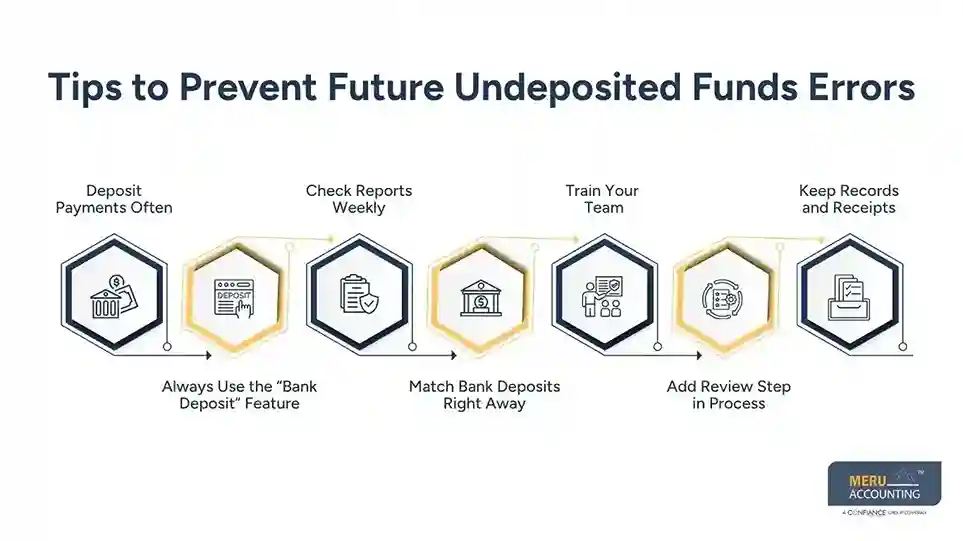
Train Your Team
If others post payments, train them to use the right steps. Mistakes are often from bad habits. A trained team can follow the same process and avoid unnecessary accounting errors.
Add Review Step in Process
Add a checklist or review step each week. This helps you catch unmatched deposits or unposted payments. A simple review routine improves accuracy and keeps your books updated.
Keep Records and Receipts
Keep scanned receipts or notes for deposits. If there’s a mismatch later, you’ll know where it came from. Proper documentation makes it easier to investigate and correct payment-related issues.
Why Choose Meru Accounting for Managing Undeposited Funds in QuickBooks?
Managing undeposited funds in QuickBooks requires accuracy, timely reviews, and proper reconciliation. Meru Accounting helps businesses keep their payment records organized by tracking customer payments, clearing old transactions, and matching deposits with bank records.
Our bookkeeping professionals ensure that uncleared payments are managed correctly to maintain accurate financial reports and reliable QuickBooks banking records. With QuickBooks bookkeeping expertise, Meru Accounting helps reduce payment errors, avoid duplicate entries, and improve cash flow visibility. We follow reliable bookkeeping processes to keep your accounts updated, reconciled, and ready for better financial decision-making.
Our Expert Perspective
Our experts believe that regular review and reconciliation of pending payment records are essential to maintain accurate financial records. Proper payment tracking in QuickBooks helps businesses avoid duplicate entries, unmatched deposits, and reporting errors.
Key Takeaways
- Undeposited Funds in QuickBooks act as a temporary holding account for payments before bank deposits.
- Proper management of pending payment records keeps your bank records, financial reports, and customer payments accurate.
- Regular reconciliation helps identify unmatched deposits, duplicate entries, and outdated transactions.
- Using the QuickBooks bank deposit feature reduces errors, improves payment tracking, and supports effective QuickBooks banking management.
- Organized bookkeeping processes improve cash flow visibility and support better financial decisions.
- Meru Accounting helps businesses maintain clean QuickBooks records through accurate payment tracking and reconciliation.
FAQs
It’s a temporary holding account for customer payments that haven’t been deposited into a bank yet.
You may have ungrouped or unmatched payments sitting in the account. Review and deposit them properly.
You should not delete them unless they are errors or duplicates. Instead, record the deposit correctly and clear them from the account.
Check and reconcile weekly to avoid long-term errors.
Use the “Bank Deposit” feature, then go to the bank feed and match the deposit.