Meru Accounting

How QuickBooks for Ecommerce Business Helps You Track Sales and Control Costs

Contents
Looking for Reliable Accounting Support?

Let our experts help you simplify accounting, manage compliance and focus on growing your business.

    How QuickBooks for Ecommerce Business Helps You Track Sales and Control Costs

    An ecommerce store can have hundreds of orders in a day, yet its owner may still struggle to tell which products bring in the most profit. A popular item may have low margins, while a slow-selling product may earn more after costs. QuickBooks for Ecommerce business can help make these numbers easier to track by giving sales, expenses, and product costs a clear place in your books.

    The real value comes from knowing what the numbers say. Are marketplace fees cutting into your margins? Are shipping costs higher than expected? Are discounts driving sales but leaving little profit? With the right QuickBooks setup, you can get a better view of these trends, spot costs that need attention, and make smarter choices about pricing, stock, and growth.

    What You Will Learn From This Blog

    • How QuickBooks can help track sales from online stores and sales channels.
    • Ways to record refunds, fees, taxes, and other sales data.
    • How to use QuickBooks Ecommerce accounting to track and control costs.
    • Steps to set up accounts, products, and sales channel links.
    • Which reports can help you check sales and profit.
    • Common accounting errors that can affect your books.

    What Is QuickBooks for Ecommerce Business?

    QuickBooks for Ecommerce business refers to the use of QuickBooks to record and manage the money side of an online store. It helps you keep track of sales, costs, bills, stock, and cash flow.

    For example, if you sell on Shopify, Amazon, or eBay, you may get orders from more than one source. Each sales channel may have its own fees, refund rules, and payout dates. QuickBooks can bring in data from supported sales channels through its own connectors or other apps.

    This helps you keep sales and costs in one set of books rather than work with many separate files. You can also link bank and card accounts to bring in bank data and review it against your records.

    Some key uses include:

    • Sales tracking: Record sales, refunds, and other order data.
    • Cost tracking: Sort fees, shipping costs, ad spend, and other bills.
    • Stock records: Track stock value and cost of goods sold (COGS) where the plan and setup allow it.
    • Bank checks: Match sales payouts with bank deposits.
    • Reports: Review income, costs, cash flow, and profit.

    The tools you can use depend on your QuickBooks plan, sales channel, and connector. So, check the features you need before you pick a plan.

    How QuickBooks for Ecommerce Business Helps Track Sales

    Sales data is key to knowing how your store is doing. Yet, the amount paid by a buyer and the amount that reaches your bank may not be the same. Fees, refunds, taxes, and other changes can affect each payout.

    Here is how QuickBooks can help you track these sales records:

    1. Record Sales From More Than One Channel

    Many online sellers use more than one sales channel. You may have a Shopify store and also sell on Amazon or eBay. Each one can send sales data to your books through a supported link.

    This helps cut down on the need to enter each order by hand. You can review sales by channel and see where your income comes from. It also makes it easier to spot gaps in your records.

    2. Track Gross Sales, Discounts, and Refunds

    Gross sales show the full value of orders before costs and some sales changes are taken into account. But this is not the same as the money you keep.

    For a clear view, you need to track:

    • Total sales before discounts.
    • Discounts given to buyers.
    • Refunds and returns.
    • Canceled orders.
    • Net sales after these changes.

    For example, say your store gets $20,000 in sales in a month. You give $1,000 in discounts and issue $500 in refunds. Your net sales are $18,500 before other costs and fees.

    When these items are set up and recorded in the right accounts, QuickBooks can help you see the gap between gross and net sales.

    3. Track Sales Tax

    Sales tax can be a key part of ecommerce records, as rules vary by state and sales channel. In the US, some marketplaces may collect and pay sales tax on behalf of sellers. In other cases, the seller may still have tax duties.

    QuickBooks can help record sales tax and track the amount due. The setup must match how each channel handles tax. Do not treat all tax paid by a buyer as store income.

    Review tax reports and compare them with your sales channel data. If you sell in more than one state, ask a tax expert to check where you need to collect and file sales tax.

    4. Match Payment Payouts With Bank Deposits

    A sales channel may send one payout for many orders. It may first take out fees, refunds, and other charges. So, the bank deposit may not match the gross sales total.

    QuickBooks connectors for some channels can bring in sales, fees, refunds, and payouts to help with this check. The exact steps and features vary by channel.

    For example, if a sales channel reports $5,000 in sales, takes $250 in fees, and pays you $4,750, your books should show both the sales and the fees. If you record only the bank deposit as sales, you may understate both income and costs.

    Good financial management isn't
    optional anymore
    Meru Accounting handles the accuracy, so you can focus
    on running the business

    How QuickBooks Ecommerce Accounting Helps Control Business Costs

    Sales growth does not always mean more profit. Your store may sell more items but still earn less if stock, shipping, ad, or platform costs rise.

    QuickBooks Ecommerce accounting helps you sort these costs and see where your money goes.

    1. Track Inventory Costs and COGS

    The cost of goods sold is the cost of the items you sell. It may include the cost you pay to make or buy each item, based on your stock method and records.

    For example, if you sell 100 items that cost $12 each, your COGS is $1,200. This cost must be linked to the right items and sales period to show a fair view of profit.

    QuickBooks inventory tools can help track stock value and COGS, based on your plan and setup. You need to enter the right cost for each item and keep stock counts up to date.

    Also, check how your sales channel link handles stock. Some links do not sync stock levels both ways. You may need to update stock in QuickBooks and your store as two separate tasks.

    2. Monitor Shipping and Packing Costs

    Shipping and packing costs can take up a large share of each order’s value. These costs may include:

    • Carrier charges.
    • Boxes, bags, and labels.
    • Packing supplies.
    • Third-party order and shipping fees.
    • Costs for rush or return shipping.

    Record these costs under clear accounts. This helps you see how much it costs to ship each order and which items leave less profit after delivery costs.

    If you offer free shipping, do not treat it as a cost-free offer. The store still pays the carrier, so this cost must be part of your price and profit review.
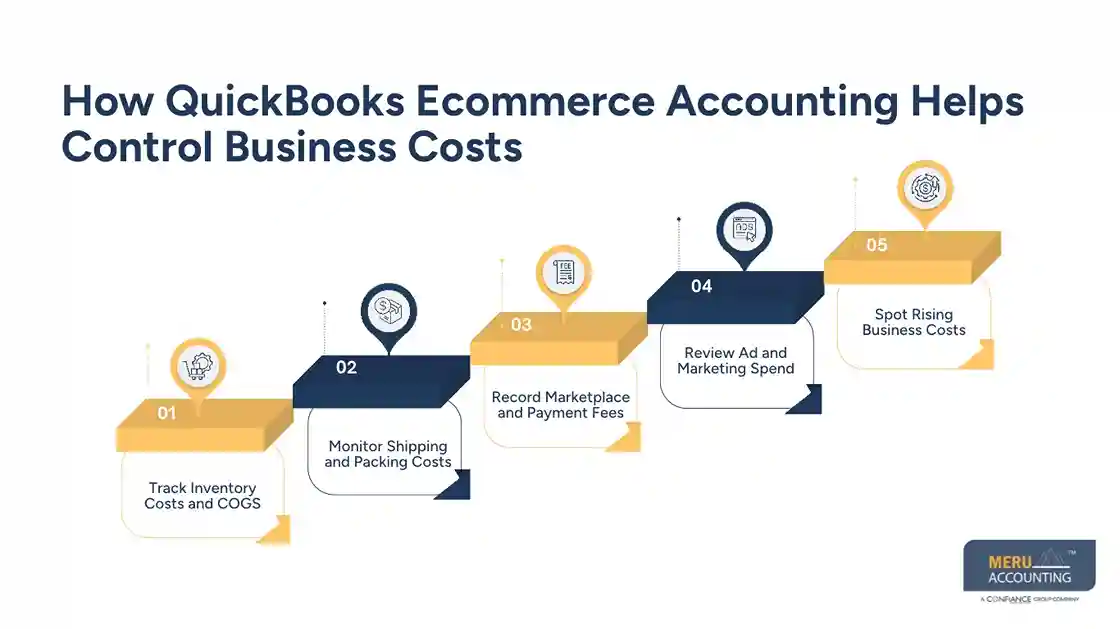
    How QuickBooks Ecommerce Accounting Helps Control Business Costs 3. Record Marketplace and Payment Fees

    Marketplaces and payment firms may charge fees for each sale. These can include listing fees, referral fees, card fees, and other service costs.

    Keep each type of fee in the right account. This makes it easier to see how much each channel costs to use.

    For example, a store may earn more sales on one marketplace but pay higher fees there. A cost report can help you judge if that channel still gives you a good return.

    4. Review Ad and Marketing Spend

    Paid ads can help bring new buyers to your store, but high ad spend can cut into profit. Track costs for search ads, social media ads, email tools, and other paid campaigns.

    QuickBooks can show the amount spent, but it may not tell you how many sales each ad drove. For that, you may need data from your ad and store tools.

    Review ad spend with sales data to see if the money you put in brings a fair return. Do not judge an ad only by clicks or views.

    5. Spot Rising Business Costs

    A cost may seem small on its own but add up over time. This can happen with software plans, storage fees, payment charges, or packing supplies.

    Use cost reports to compare each month with the last one. Look for sharp rises and check what caused them. This can help you fix waste, review vendor rates, or change how you ship orders.


    How to Set Up QuickBooks for Ecommerce Sales and Expense Tracking

    A sound setup is key to getting useful data from your books. Before you start, list each sales channel, payment tool, bank account, and main cost type.

    Use these steps to set up your records:

    1. Create an Ecommerce Chart of Accounts

    Set up clear accounts for sales, refunds, discounts, sales tax, COGS, stock, shipping, ad spend, and platform fees. This will help keep each type of sale and cost in the right place.

    Avoid adding too many accounts that serve the same purpose. A clean chart of accounts makes reports easier to read.

    2. Link Your Sales Channels

    Connect each supported store or marketplace to QuickBooks using the right connector. Check the start date, account mapping, and sales data before the first sync.

    Do not use a start date that overlaps with data you have already entered. This can lead to duplicate sales and costs.

    3. Set Up Products and Stock Costs

    Add product names, SKUs, sales prices, and item costs. Check that the item names match across your store and books. This helps reduce errors when sales data comes in.

    4. Set Up Bank and Card Feeds

    Link your business bank and card accounts, then review the data that comes in. Match each bank item to the right sale, fee, bill, or transfer.

    Do not mark every bank deposit as sales. Some deposits may be loans, owner funds, or transfers from another account.

    5. Set a Monthly Review Process

    Set a date each month to check sales, fees, refunds, stock, and bank records. A set process helps catch missing or duplicate data before it affects your reports.

    How to Use QuickBooks Reports to Measure Ecommerce Profitability

    Reports help turn sales and cost data into useful facts. With QuickBooks for Ecommerce business, you can use key reports to see what is working and where costs may be too high.

    Here are some reports to review:

    • Profit and Loss Report: Shows income, costs, and net profit for a set time.
    • Sales Reports: Help you review sales by item, customer, or channel where the data is set up.
    • Inventory Valuation Report: Shows the value of stock on hand when inventory tracking is in use.
    • Cash Flow Report: Helps you review cash coming in and going out.
    • Expense Reports: Show how much you spend across key cost groups.

    Do not rely on one report alone. For example, a Profit and Loss report may show a good profit, but your bank balance may still be low if buyers have not paid or you have spent cash on new stock.

    Review reports each month and compare them with sales channel data. This gives you a better view of sales, costs, cash, and stock.

    Common QuickBooks Ecommerce Accounting Mistakes That Can Affect Profit

    Even with good software, poor setup or weak checks can lead to errors. Here are some common issues to watch for:

    1. Recording Net Payouts as Gross Sales

    A bank payout is not always the same as sales. If you record only the net amount, you may miss fees, refunds, and other costs. Record each part in the right account.

    2. Missing Refunds and Chargebacks

    Refunds and chargebacks affect net sales and cash flow. Check that each one is linked to the right order and sales period.

    3. Using the Wrong COGS

    If item costs are wrong or out of date, your profit report may be wrong too. Update costs when supplier prices change and check stock counts on a set basis.

    4. Mixing Business and Personal Costs

    Using one bank or card for both personal and business costs makes it harder to keep clean books. Use business accounts for store costs and keep personal spending out of the books.

    5. Failing to Check Sales Channel Data

    A sync does not mean every entry is right. Check for missing orders, duplicate sales, wrong tax codes, and payout gaps. This review is a key part of sound QuickBooks Ecommerce accounting.

    QuickBooks Ecommerce Accounting Services by Meru Accounting

    A differenoce between reported sales and actual bank deposits can make it hard to judge how well an online store is doing. The same goes for product costs that haven’t been updated, refunds that haven’t been recorded, or marketplace fees posted under the wrong accounts. These gaps can affect your profit reports and lead to poor business decisions.

    At Meru Accounting, we help ecommerce businesses keep these records in order through QuickBooks ecommerce accounting and dedicated accounting support. Our team works on the details that matter to online sellers, from sales channel records to monthly financial reports.

    Our ecommerce accounting services include:

    • QuickBooks Setup and Review: Set up accounts, map sales and expense categories, and review existing records.
    • Sales and Payout Reconciliation: Match store sales with payment gateway and marketplace deposits, including fees, refunds, and chargebacks.
    • Inventory and COGS Accounting: Review product costs, stock records, and cost of goods sold to support accurate profit reporting.
    • Expense and Vendor Management: Track shipping, packaging, advertising, marketplace charges, supplier bills, and other operating costs.
    • Accounts Payable and Receivable: Keep vendor payments and customer balances up to date.
    • Monthly Bookkeeping and Reporting: Prepare profit and loss statements, cash flow reports, and other financial reports.
    • Cleanup, Catch-Up, and Tax Support: Correct past entries, bring overdue books up to date, and provide tax preparation and CPA support for ecommerce businesses.

    Whether you need help with an existing QuickBooks setup or a dedicated team to manage your ongoing ecommerce accounting, Meru Accounting can provide the support at a fraction of the cost of a US in-house team.

    Our Expert Insight

    Higher sales don’t always mean higher profits. We often find that rising ad costs, supplier price hikes, and frequent discounts can cut into product margins even when order volume is growing.

    For example, a product sells for $50 and costs $20 to buy. After $12 in ad spend, $5 in marketplace fees, and $6 in shipping, just $7 remains before overhead. If these costs aren’t factored into pricing, the business may keep selling a product that brings in very little profit.

    Our advice is to review profit margins by product, not just total sales. Also, account for shared costs, such as warehouse rent and staff pay, when assessing overall product performance. This gives ecommerce owners a better basis for pricing decisions, ad budgets, and stock planning.

    Key Takeaways

    • QuickBooks can help ecommerce stores track sales, costs, and cash flow.
    • Sales, refunds, fees, and taxes must be recorded in the right accounts.
    • COGS and stock costs play a key role in profit reports.
    • Link only supported sales channels and check each data sync.
    • Use monthly reports to review sales and spot rising costs.
    • Regular bank and payout checks help keep your books right.
    • Expert accounting help can save time and reduce errors as your store grows.

    FAQs

    QuickBooks Online is a popular choice for ecommerce businesses that need cloud access, sales tracking, expense records, and financial reports. The best plan depends on your inventory needs, sales volume, and required integrations.

    Yes. QuickBooks can show income, expenses, and net profit. For a more accurate view, you must also record product costs, shipping, marketplace fees, refunds, and advertising expenses.

    Yes. You can connect Amazon and Shopify through supported apps and integration tools. These connections can help sync sales and payment data, depending on the features of each integration.

    Marketplaces and payment processors often deduct fees, refunds, and other charges before sending payouts. Differences in payment dates can also affect the totals. Check your payout reports to find the cause.

    Monthly reconciliation is a good starting point. However, businesses with high sales volumes or multiple sales channels may benefit from weekly checks to catch missing transactions, duplicate entries, and payout errors early.

    Good financial management isn't
    optional anymore
    Meru Accounting handles the accuracy, so you can focus
    on running the business