A sale may look good on paper, but do you know how much you actually made after refunds, payment fees, and stock costs? When sales, payroll, and inventory records sit in separate systems, it’s easy for the numbers in your books to fall out of sync. The right QuickBooks integrations can help connect these records and give you a clearer picture of your business.
From syncing online orders to tracking payroll costs and building better financial reports, the right tools can save time and help cut down on errors. In this blog, we’ll cover useful QuickBooks third-party integrations for different business needs, what to look for when choosing them, and how to keep your accounting data accurate.
What You Will Learn From This Blog
- How QuickBooks integrations link your accounting data with other business tools.
- Which types of apps can help manage sales, payroll, stock, and reports.
- What to check before you connect a third-party app.
- How to avoid sync errors, duplicate entries, and gaps in your books.
- When expert accounting support can help keep your data accurate.
What Are QuickBooks Integrations and How Do They Work?
QuickBooks integrations connect your accounting software with other apps used to run your business. These links let data move between systems, which can cut down on manual entry and help keep records in sync.
For example, an online store may send order data to QuickBooks, while a payroll app may post wage costs and tax entries. An inventory tool may track stock and cost of goods sold, while a reporting app may turn financial data into charts and trends.
Most links work through an app marketplace, a direct connection, or an API. The setup may sync data in real time, at set times, or when a user starts the sync. The data that moves depends on the app, your plan, and the settings you choose.
Before you set up QuickBooks integrations, check which version you use. QuickBooks Online and QuickBooks Desktop do not support the same apps or features. You should also confirm which records sync, how edits are handled, and whether the link can create duplicate entries.
Why Do Businesses Use QuickBooks Third-Party Integrations?
Businesses use QuickBooks third-party integrations to link daily tasks with their accounting records. Instead of moving data by hand, teams can sync key details across apps and spend more time on work that needs their attention.
Here are the main benefits.
- Less manual entry: Sales, bills, and wage data can flow into the books with less typing.
- Fewer data entry errors: Automated transfers can reduce mistakes, though they still need review.
- Faster month-end close: Teams can spend less time gathering records from many systems.
- Better cash flow tracking: Linked sales and payment data can help show what came in and what remains unpaid.
- Clearer business reports: Data from connected tools can give owners a fuller view of costs, sales, and profit.
For example, a retailer may use one app to process orders, another to track stock, and QuickBooks to manage its books. Linking these systems can help the team track sales and stock costs without entering each item twice.
Still, automation does not replace sound accounting. If an app maps fees, taxes, refunds, or stock costs to the wrong accounts, the books can remain wrong even when the sync works as planned.
optional anymore
on running the business
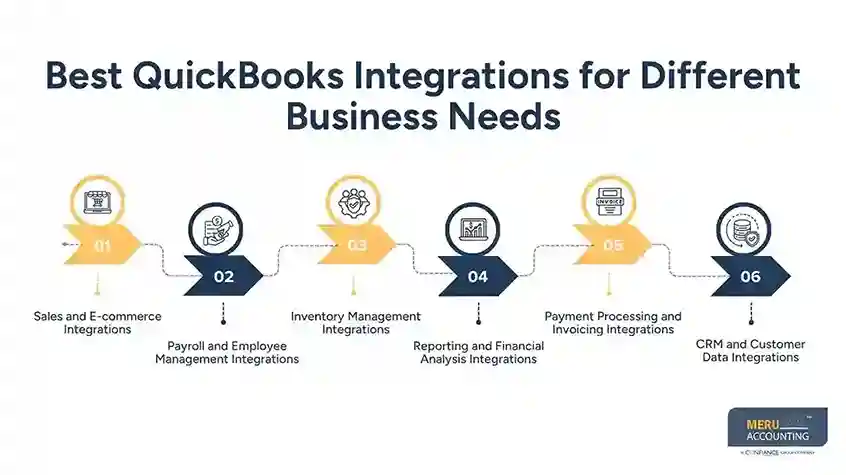
Best QuickBooks Integrations for Different Business Needs
The best app depends on what your business needs to manage. Before choosing from QuickBooks integrations, focus on the task you want to improve, the data that must sync, and the checks your team needs to make.
Sales and E-commerce Integrations
Sales apps help bring order and payment data into your books. They can be useful for online stores, retailers, and firms that sell through more than one channel.
Tools such as Shopify, WooCommerce, and sales platforms with QuickBooks support may help link order data with your accounts. The exact features depend on the connector you choose.
Look for features such as:
- Order and sales data sync
- Refunds, discounts, and sales tax tracking
- Payment fees and payout records
- Sales by channel or product
- Links to customer and invoice records
Example: A store sells $100 of goods, pays a $3 card fee, and gets a $97 payout. Your books should show $100 in sales, $3 in fees, and $97 received. Recording only the bank payout as sales would understate both revenue and fees.
Good QuickBooks integrations help link these records, but you still need to match payouts to bank activity and check how the app handles refunds and fees.
Payroll and Employee Management Integrations
Payroll tools help manage pay runs, wage costs, tax records, and employee data. A link to QuickBooks can help record payroll costs and related payments in the right accounts.
For U.S. firms, payroll apps may also help track taxes withheld, employer payroll taxes, benefits, and other costs. The level of support varies by provider and plan.
When reviewing payroll tools, check whether they can:
- Post payroll summaries to the right accounts
- Track wages, benefits, and employer taxes
- Support the pay schedule and staff setup you use
- Handle payroll corrections and voided checks
- Share reports for review and tax work
Do not assume that every payroll app sends all employee and tax data to QuickBooks. Some send only summary entries, while others support more detailed links. Confirm how payroll liabilities and payments are recorded before the first live run.
Inventory Management Integrations
Inventory apps help businesses track stock levels, purchases, sales, and product costs. They can be useful for retailers, wholesalers, and e-commerce firms that manage many products or sell across several channels.
A suitable tool may link product records, stock changes, purchase orders, and sales with QuickBooks. Some apps also help track cost of goods sold (COGS), which is key to knowing gross profit.
Check for these features:
- Stock levels across sales channels
- Purchase and supplier records
- Product costs and COGS tracking
- Returns, damaged goods, and stock changes
- Low-stock alerts and inventory reports
Example: If your system records a sale but does not update stock costs, your sales may look right while your gross profit does not. A well-set-up link should help keep sales and stock records aligned.
Before selecting QuickBooks integrations for stock control, check how the app handles bundles, product variants, returns, and stock adjustments. You may need a separate inventory tool if your stock needs go beyond the features in your current accounting plan.
Reporting and Financial Analysis Integrations
Reporting tools help turn accounting data into useful views of business performance. They may offer dashboards, custom reports, budget tracking, or data from more than one system.
These tools can help owners review sales trends, spending, profit margins, and cash flow. They may also help managers compare results across teams, sites, or sales channels.
Useful features include:
- Custom reports and dashboards
- Budget versus actual results
- Profit and loss trends
- Cash flow forecasts
- Data export and report sharing
Choose a tool that draws from the right data and lets you trace report totals back to source records. A polished dashboard is not enough if the underlying books contain duplicate sales or unreconciled payments.
For many small firms, the built-in QuickBooks reports may be enough. Add a separate reporting app when you need more detail, data from other systems, or a view that the standard reports cannot provide.
Payment Processing and Invoicing Integrations
Payment and invoicing apps help businesses send bills, accept payments, and track what customers owe. Depending on the setup, they may sync invoice details, payment status, and fees with QuickBooks.
Look for tools that support payment matching, overdue invoice tracking, and clear records of refunds or failed payments. This can help your team spot unpaid bills and match customer payments to the right invoices.
CRM and Customer Data Integrations
Customer relationship management (CRM) tools help sales teams track leads, deals, and customer details. Linking a CRM with QuickBooks can give sales and finance teams a shared view of customer activity.
For example, a sales team may close a deal in its CRM, while the finance team creates an invoice in QuickBooks. A suitable link can reduce duplicate data entry and help both teams track the sale.
Check which customer fields sync and which system controls each record. This can help prevent duplicate customer profiles and billing errors.
Common Problems With QuickBooks Third-Party Integrations and How to Avoid Them
Even well-built tools can cause problems when their settings do not match your accounting process. Watch for these common issues when using QuickBooks third-party integrations.
- Duplicate transactions: Two apps may send the same sale or payment. Set clear sync rules and check for duplicates during reconciliation.
- Wrong account mapping: Fees, taxes, or refunds may post to the wrong accounts. Review the account mapping before syncing live data.
- Missing records: Failed syncs may leave gaps in sales, bills, or payments. Check sync logs and compare totals across systems.
- Product or customer mismatches: Different names or IDs can create duplicate records. Set clear rules for matching items and customer data.
- Version limits: An app may support QuickBooks Online but not your Desktop version, or certain features may need a higher plan. Confirm compatibility before paying for the tool.
- Access and security risks: Apps may request access to more data than they need. Review permissions and remove access when a tool is no longer in use.
Do not assume a successful sync means your books are correct. Review key totals, fix errors, and confirm that linked records match the source data.
Best Practices for Managing Integrated Business Data in QuickBooks
A clear process can help you get more value from QuickBooks integrations without adding new accounting risks.
- Set a clear goal. Decide whether you need to cut data entry, improve stock tracking, speed up payroll posting, or build better reports.
- Check the data flow. Know which app sends each record and where it should appear in QuickBooks.
- Test before launch. Run sample sales, refunds, payroll entries, and payments before relying on the live sync.
- Reconcile on a set schedule. Match bank records, payment processor reports, and accounting entries on a regular basis.
- Review user access. Give each app and staff member only the access needed for their role.
- Track sync errors. Assign someone to review failed transfers and resolve them before month-end.
- Keep records of changes. Document account mappings, sync settings, and any changes to the setup.
These steps help keep your data clear and make it easier to spot problems before they affect reports or tax records.
How Meru Accounting Can Help With QuickBooks Integrations
Connecting apps is only part of the job. Sales, payroll, and inventory data must also be recorded correctly to keep your books accurate. At Meru Accounting, we help businesses across industries manage their accounting with QuickBooks and other software, using workflows that fit their existing systems.
Our services include:
- Bookkeeping and Reconciliation: Record transactions and reconcile bank and credit card accounts.
- Sales and Payment Tracking: Match sales, fees, refunds, and payment processor deposits.
- Payroll Accounting: Record wages, payroll taxes, benefits, and related liabilities.
- Inventory and COGS: Review stock costs and cost of goods sold for accurate profit reporting.
- Financial Reporting: Prepare monthly reports to help you track revenue, expenses, and cash flow.
- Bookkeeping Cleanup: Find and correct duplicate entries, missing transactions, and unreconciled balances.
Whether you need help managing connected data or cleaning up your books, our team can help keep your records accurate and your financial reports ready for review.
Our Expert Insight
One common issue with QuickBooks integrations is that sales and bank deposits may not match. For example, an online store records a $500 sale, but the payment processor deducts fees and refunds before sending the payout. If these entries aren’t recorded correctly, revenue and expenses may be misstated.
We recommend testing a full transaction, from the original sale to the bank deposit, before relying on a new integration. This helps catch account mapping errors early and keeps your financial reports accurate.
Key Takeaways
- QuickBooks integrations can link accounting with sales, payroll, inventory, reporting, and other business tools.
- The right app depends on your business needs, QuickBooks version, and budget.
- QuickBooks third-party integrations can reduce manual work, but they do not remove the need for review and reconciliation.
- Test data flows and account mappings before using a new link in your live books.
- Regular checks help catch missing records, duplicate entries, and reporting errors.
- Professional accounting support can help keep connected systems and financial records aligned.
FAQs
Shopify and WooCommerce integrations can sync sales, refunds, fees, and payouts. Choose one that fits your sales channels and avoids duplicate entries.
Yes. You can connect compatible apps for sales, payroll, inventory, and reporting. Check how they share data to avoid duplicate records.
Payment fees, refunds, and chargebacks can cause differences. Compare processor statements with bank deposits to find the cause.
Not all apps support both versions. Check compatibility and feature limits before choosing an integration.
Review pricing, sync frequency, supported features, and data security. Make sure it handles your key transactions and fits your current workflow.
optional anymore
on running the business