
Reconciliation automation in QuickBooks Online via Bank Feeds is an enormous step for business organizations looking to simplify their financial procedures. Bank Feeds lets you link your bank and credit card accounts directly to QuickBooks Online, where all the transactions would automatically get transferred into your QuickBooks account; thus, eliminating any potential for error due to data entry from your end, saving much of your precious time. QuickBooks helps businesses compare imported transactions against those already present. It automatically assists in matching transactions to make financial records easier and accurate. Automated reconciliation improves transparency of the books of account which enables monitoring cash flow more efficiently and audit preparedness.
Reconciliation in QuickBooks Online
Reconciliation is the process of comparing financial records with bank or credit card statements, ensuring that all transactions are accurate and accounted for. It helps businesses in identifying discrepancies such as missed or duplicate entries. This enables their financial records to align with reality. Regular reconciliation is essential for maintaining financial accuracy and avoiding errors, thus fostering confidence in financial reporting. This is crucial for audits and decision-making.
Reconciliation also provides insights into cash flow management by keeping a close eye on mismatched transactions. This helps businesses in addressing potential financial issues, preventing overdrafts and ensuring proper allocation of resources for future needs.
Reconciliation in QuickBooks Online is a simplified and automated way of ensuring that your books match with your bank or credit card statements. With the Bank Feeds feature, transactions are imported directly into QuickBooks which makes it easy to review and match them with your records. The software identifies any discrepancies so that users can resolve the issues quickly. This process saves time along with enhancing accuracy, allowing businesses to maintain clean and reliable financial records effortlessly.
QuickBooks Online provides automatic reconciliation reports that summarize the entire process. These reports offer a clear picture of outstanding transactions, adjusted balances and any discrepancies which in turn enable business owners to maintain a transparent and organized financial system.
Automating Reconciliation in QuickBooks Online
- Categorization Rules Setup: Automatically categorize transactions based on predetermined criteria, thereby saving time and ensuring accuracy.
- Matching Feature Use: Match the imported transactions to the existing ones to ensure alignment and resolve differences.
- Reconciliation Reports Generation: Generate reconciliation reports after completing the process to ensure that all the transactions are correct.
- Alert Setup for Flagged Transactions: Set alerts for unmatched and flagged transactions for easy identification of potential issues.
- Regularly Update Bank Feeds: Update your bank feeds regularly to ensure that all recent transactions are imported for accurate reconciliation.
- Capture Receipts with the Mobile App: Capture and automatically match receipts to transactions using QuickBooks’ mobile app.
- Schedule Periodic Reconciliations: Schedule regular reconciliations to ensure that your financial records are always accurate and to catch discrepancies early.
- Integrate Third-Party Tools: Use integrated third-party tools to automate more and get additional reconciliation features.
Steps to Automate Reconciliation in QuickBooks Online with Bank Feeds
Step 1: Link Your Bank Account
- Connect your bank account to automate reconciliation in QuickBooks Online. First, log into your QuickBooks account, then navigate to the Banking menu and select Connect Account. In order to let QuickBooks Online access your bank, find your bank on the list of approved institutions and follow the directions.
- As soon as the connection is created, your transactions will automatically start flowing into QuickBooks. This connection is what’s going to accelerate your reconciliation process.
Step 2: Set up Bank Feeds
- Once you add the bank, you should turn on Bank Feeds. In your Banking menu, choose the new account you created and click “Get Started”. You will also be given the option to set up rules for your transactions.
- For example, you can create payee or amount-based rules so that some types of transactions can be automatically sorted. This really helps to sort your transactions into categories as they come in so that reconciliation will be easier once you get them into QuickBooks Online.
Step 3: Review Imported Transactions
- Once your bank is linked and Bank Feeds are active, QuickBooks Online will automatically pull in your transactions. You can find these in the Banking section under the “For Review” tab.
- If a transaction matches something already in QuickBooks, you can click “Match” to pair them up. You can add the transaction as a new entry if it’s brand-new. Regularly reviewing these transactions will ensure that your financial records are accurate.
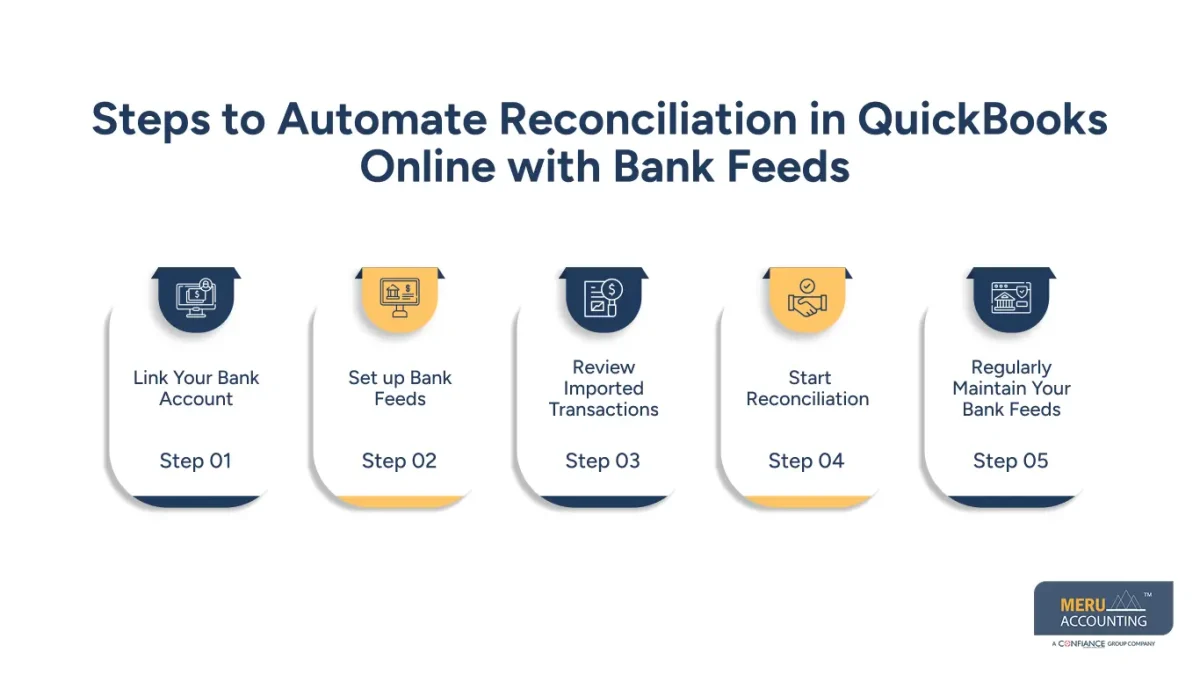
Step 4: Start Reconciliation
- Go back to the Banking menu and click “Reconcile”. Choose which account you want to reconcile or both, if applicable. You will be prompted to enter the ending balance and date of your bank statement. QuickBooks Online will then list all of the transactions it has recorded, and it’s up to you to match these with transactions on your bank statement.
- Use the “Match” or “Add” options to align the transactions. Once all transactions are accounted for, you can complete the reconciliation by confirming that your ending balance matches the bank statement.
Step 5: Regularly Maintain Your Bank Feeds
- It is also advisable to review your bank feeds regularly to ensure everything is in order. QuickBooks Online automates most of the work, but it is still advisable to check categorization and reconcile your accounts every month. This will keep your financial records correct and current.
Conclusion
Automating reconciliation in QuickBooks Online using Bank feeds simplifies accounting processes and ensures accuracy in financial records. Meru Accounting helps businesses utilize tools like QuickBooks Online to save time and minimize errors. By connecting bank accounts, setting up rules, and regularly reviewing transactions, businesses can maintain a seamless financial workflow and focus on growth.