
Running a Shopify store means keeping track of sales, fees, refunds, stock, and cash flow. As orders grow, it can get hard to keep each record up to date. Even a small gap between sales data and bank records can lead to wrong reports and extra work at tax time.
Shopify QuickBooks integration can help ecommerce businesses link store data with their books and cut down on manual entry. It can help track sales, record fees, and match payouts with bank deposits. Yet, a link between two tools does not mean every entry will be right. You still need to set up accounts, check sync rules, and review each month’s records.
In this blog, we explain how the setup works, how to choose an app or sync method, and how to fix common errors. We also cover how to keep your books clear as your store grows.
What You Will Learn From This Blog
- What Shopify QuickBooks integration means and how it works.
- Why online stores link Shopify with QuickBooks.
- How to set up the link and map key data.
- How to fix common sync and payout errors.
- How to keep sales, fees, refunds, and stock records in line.
- When expert ecommerce accounting help may be useful.
What Is Shopify QuickBooks Integration?
Shopify QuickBooks integration links your online store with QuickBooks so key sales and payment data can flow into your books. The exact data that syncs depends on the app, QuickBooks plan, and settings you use.
A Shopify store may record orders, discounts, refunds, and sales tax, while QuickBooks tracks income, costs, bank activity, and reports. A well-set-up link helps keep these records in line without the need to enter each sale by hand.
For example, say your store makes 200 sales in a day. Rather than keying in each order, your chosen app may group sales by date or payment type and send the data to QuickBooks. You can then check the totals and match them with the funds paid into your bank.
Keep in mind that Shopify QuickBooks integration does not always sync every type of data. Some apps may sync each order, while others may post daily sales summaries. Stock, fees, refunds, and tax data may need extra setup or manual checks.
optional anymore
on running the business
Why Do Ecommerce Businesses Connect Shopify With QuickBooks?
As order volume grows, manual data entry can take up time and lead to errors. Linking your store to your books can help you keep better track of sales and costs.
Cut Down on Manual Data Entry
Entering each order by hand takes time, especially when you sell across many channels. Shopify QuickBooks integration can reduce repeat work by sending data to your books based on the sync rules you set.
This gives you more time to manage orders, help buyers, and grow your store.
Track Sales and Fees With More Care
The amount a buyer pays is not always the amount that reaches your bank. Payment fees, refunds, discounts, and other costs can change the final payout.
For example, if a buyer pays $100 and the payment fee is $3, you may get a net payout of $97. Your books should still show the $100 sale and the $3 fee as separate entries. This helps you see both your gross sales and the cost of taking payments.
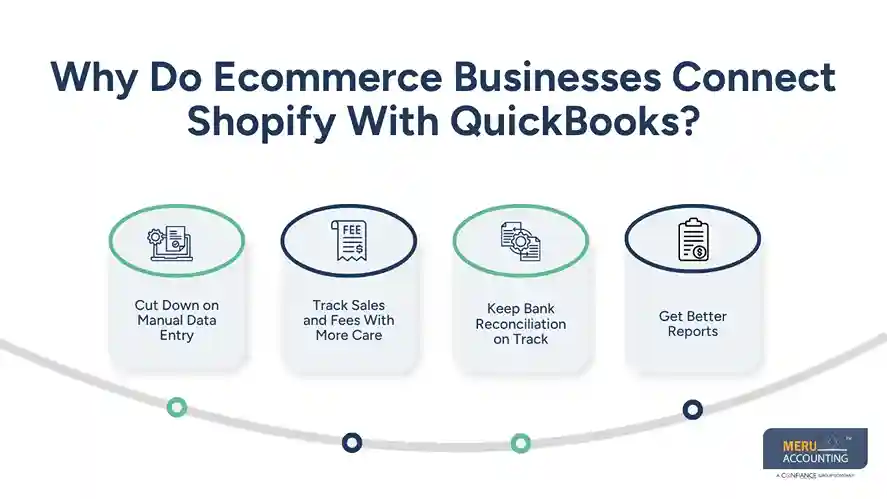
Keep Bank Reconciliation on Track
Bank reconciliation means checking your bank records against your books. If Shopify payouts are not recorded in the right way, the bank balance may not match your accounting records.
A sound setup for Shopify QuickBooks integration helps link payout records to bank deposits. You still need to review any gaps, as payout dates, refunds, and fees can affect the match.
Get Better Reports
Accurate books help you see sales, costs, profit, and cash flow. QuickBooks can turn well-kept records into reports that help you judge which products sell well and where costs are rising.
These reports are only as sound as the data behind them. Review the entries often so that wrong or missing data does not affect your view of the business.
How Does Shopify QuickBooks Integration Work?
The flow depends on the app you use, but most setups move data from Shopify to QuickBooks through a set of rules. Here are the main items to review.
Syncing Sales and Orders
Your app may send each order to QuickBooks or post a daily summary. It may also send details on discounts, sales tax, and refunds.
Choose a method that fits your order volume and reporting needs. If you need to review each order, a summary may not give you enough detail. If you have many orders, posting each one may add clutter to your books.
Recording Payment Fees and Refunds
Payment fees are a cost of making sales. Refunds reduce the amount you keep from a sale and must be tracked in the right way.
Your sync setup should show these items apart from gross sales. If fees or refunds are missed, your income and profit reports may be wrong.
Matching Payouts With Bank Deposits
Shopify or a payment provider may send one payout for many orders. That deposit may include sales from more than one day, less fees and refunds, or other changes.
Shopify QuickBooks integration should be set up so the payout can be matched with the right records in QuickBooks. Do not record the net bank deposit as a new sale, as this can count the same income twice.
Tracking Tax and Stock
Sales tax rules depend on where you sell, where you have tax duties, and the goods you offer. Your app may pass tax data to QuickBooks, but you should check that the right accounts and rates are used.
Stock needs care, too. A sales sync does not always update the value of goods sold or the cost of stock on hand. You may need extra tools or a clear process to track stock, returns, and cost of goods sold (COGS).
How to Set Up Shopify QuickBooks Integration
A good setup starts with clean books and clear rules. Before you link the tools, review your current records and decide how sales should show in QuickBooks.
Step 1: Choose the Right QuickBooks Version and App
Check which QuickBooks version you use and whether the app supports it. Review the data it can sync, how often it runs, and how it handles refunds, fees, tax, and payouts.
Do not choose an app based on its list of features alone. Make sure it fits how your store takes payments and tracks stock.
Step 2: Review Your Chart of Accounts
Your chart of accounts is the list of accounts used to sort income, costs, assets, and debts. Set up clear accounts for sales, discounts, refunds, payment fees, sales tax, and stock costs as needed.
Good account mapping helps you read reports with less guesswork. It also makes it easier to spot errors during a month-end review.
Step 3: Connect Shopify to QuickBooks
Follow the app’s steps to link your Shopify store and QuickBooks account. Grant only the access needed for the sync and check that the right store and company file are linked.
If you use more than one store, make sure each store’s data goes to the right books. Mixing records from two stores can make sales and stock reports hard to trust.
Step 4: Set Sync and Mapping Rules
Choose how orders, taxes, discounts, fees, and refunds should be sent to QuickBooks. Decide whether you want order-level entries or daily summaries, based on your needs.
For Shopify QuickBooks integration to work well, each type of entry must map to the right account. Check how the app handles canceled orders, partial refunds, gift cards, and payment holds. The options will vary by app.
Step 5: Test and Review the First Sync
Run a test with a small set of orders before syncing all your data. Check the sales total, fees, refunds, tax, and payout against the source records.
Then compare the bank deposit with the payout report. Fix any gaps before you rely on the reports for business or tax needs.
Step 6: Set a Regular Review Plan
Even with a sound setup, you need to review the books. Set a monthly check for sales, bank deposits, refunds, fees, stock costs, and tax records.
This helps you catch errors before they build up over time.
Common Shopify QuickBooks Integration Problems and How to Fix Them
Even with automation, errors can occur when settings are wrong or data does not sync as planned. Here are common issues and ways to fix them.
Duplicate Sales Entries
Duplicate entries may occur if two apps send the same orders to QuickBooks or if you import data that has already synced.
How to fix it: Check your sync history and sales records. Find the source of the duplicate entries, then change the settings before deleting or adjusting records. Keep a clear audit trail for any changes.
Payouts Do Not Match Bank Deposits
A payout may differ from gross sales because of fees, refunds, holds, or the timing of payments. This does not always mean there is an error.
How to fix it: Compare the payout report with the bank deposit. Check fees, refunds, and the payout date. If a gap remains, review the payment provider’s records before changing your books.
Missing Refunds or Payment Fees
Some apps may not sync all fee or refund details by default. This can make sales look higher or costs look lower than they are.
How to fix it: Review the app’s sync settings and test how it handles full and partial refunds. Add missing entries in QuickBooks with the right dates and accounts.
Incorrect Sales Tax Records
Tax data may be mapped to the wrong account or may not sync as expected. This can lead to gaps between store reports and your books.
How to fix it: Compare the tax data in Shopify with the entries in QuickBooks. Check the tax settings and confirm which sales tax duties apply to your business. Get tax advice when you are unsure of your filing duties.
Stock and COGS Do Not Match
A sales sync may not track stock value or the cost of goods sold in the way your business needs. Returns, damaged goods, and stock changes can add to the gap.
How to fix it: Review stock records, purchase costs, and return entries. Check whether your app supports the stock data you need or if a separate stock tool is required.
Ecommerce Accounting Services by Meru Accounting
At Meru Accounting, we help ecommerce businesses keep their books in order as they grow. Our team has experience with different business models and accounting tools, including QuickBooks Online and Xero. We work with your existing setup to keep your books accurate and your financial reports useful.
Our ecommerce accounting services include:
- Sales and Payout Reconciliation: Track Shopify sales, fees, refunds, and bank deposits.
- Inventory and COGS: Track stock costs, returns, and cost of goods sold.
- Accounts Payable and Receivable: Manage supplier bills, payments, invoices, and outstanding balances.
- Monthly Bookkeeping and Reports: Maintain your books and prepare clear financial reports.
- Book Cleanup and Tax-Ready Records: Fix past errors and keep records ready for tax review.
Whether you need ongoing bookkeeping or help with your Shopify QuickBooks integration, our team can work with your systems and business needs. Get experienced accounting support at a fraction of the cost of an in-house team.
Our Expert Insight
A key point in ecommerce accounting is that sales, refunds, and cash payouts may fall in different reporting periods. For example, a $500 order placed on September 30 may be paid out in October. If you record sales only when the money hits your bank, September revenue may be understated, and October revenue overstated.
When setting up Shopify QuickBooks integration, use a consistent method to record sales and track payout dates separately. Check how your app handles orders near month-end, partial refunds, and chargebacks. These checks help keep monthly revenue reports accurate and make it easier to explain differences between sales and cash received.
Key Takeaways
- Shopify QuickBooks integration can cut manual data entry and help keep sales records up to date.
- The right setup should account for sales, fees, refunds, tax, and payouts.
- A bank deposit is not the same as gross sales.
- Review sync rules and test a small set of orders before full use.
- Check bank records, stock costs, and refunds each month.
- An ecommerce accountant can help fix gaps and keep your books ready for tax time.
FAQs
Use a supported integration app that fits your store’s order volume, payment methods, and reporting needs. Before choosing one, check its ability to sync sales, fees, refunds, and tax data.
QuickBooks can help track income and costs, but product-level profit reports depend on how sales, inventory, and cost of goods sold (COGS) are recorded. You may need an inventory app or extra setup to get reliable product margins.
Not always. Some apps sync tax data, but syncing records does not ensure that your tax settings or filing duties are correct. Review tax entries and confirm which state and local rules apply to your business.
Review payouts and bank deposits regularly, ideally as part of your monthly close. If your store has high sales volume or frequent refunds, more frequent checks can help you spot errors sooner.
Consider expert help when sales grow, you add sales channels, inventory records stop matching, or monthly reports become hard to trust. An ecommerce accountant can review your books, resolve past errors, and help keep records ready for tax time.
optional anymore
on running the business