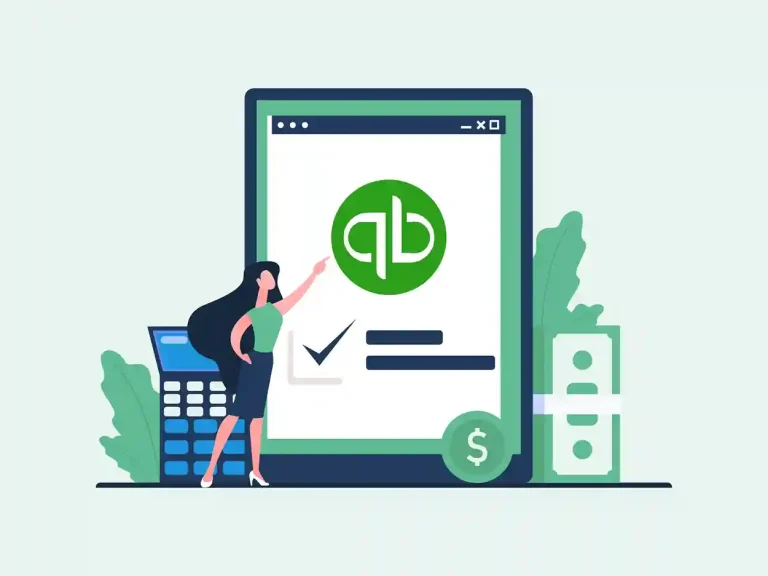
Running a business means paying people or companies for work, goods, or bills. One smart way to do this is by printing checks in QuickBooks. This makes paying fast, neat, and easy. You don’t have to write checks by hand. QuickBooks lets you type the details and print them right from your computer.
If you’re wondering how to print checks from QuickBooks or how it works in the online version, this guide is for you. We’ll explain step-by-step tips and show how to print checks in a quickbook the right way.
What You Will Learn From This Blog
- Why businesses continue to use QuickBooks for check payments.
- How outsourced bookkeeping improves payment accuracy.
- Steps to print checks from QuickBooks efficiently.
- How better bill payment management supports business growth.
- Common payment challenges businesses should avoid.
- Best practices for secure check printing.
- How professional bookkeeping improves financial visibility.
- Why outsourcing creates a more reliable payment process.
Why Print Checks in QuickBooks?
Printing checks in QuickBooks is a smart way for small and medium-sized businesses to save time and stay neat. When you type and print checks, you don’t need to write them by hand. This helps you work faster and make fewer mistakes.
You don’t have to write checks by hand anymore. You just type in the check, press print, and you’re done! It’s quick, clean, and keeps your records safe.
Here are some good reasons why printing checks in QuickBooks is a great idea:
1. Speed
Writing checks by hand takes time. But when you learn how to print checks in QuickBooks, it only takes a few clicks. You can pay people fast, even if you have many checks to send.
2. Neat Records
Every time you print a check, QuickBooks saves the details. You don’t have to keep stacks of paper or wonder who you paid. All your checks are stored in one spot and easy to find.
3. Fewer Mistakes
Typing is faster and cleaner than writing by hand. That means fewer spelling errors or missing numbers. If you make a mistake, QuickBooks lets you fix it and reprint it. This makes how to print checks in QuickBooks even easier.
4. Easy Tracking
When you know how to print checks from QuickBooks, you also know how to track payments. You can check who you paid, how much you paid, and when you paid them all with just a few clicks.
5. Safer Records
When you use how to print checks in QuickBooks Online, your check data is saved in the cloud. That means it’s protected even if your computer has a problem. You don’t have to worry about losing your records.
6. Easy Fixing
Sometimes mistakes happen. With QuickBooks, you can fix the check on your screen and print it again. No need to waste paper or start over from the beginning.
Also, if you are using the online version and want to know how to print checks in QuickBooks Online, it’s also simple. You click a few buttons in your web browser, pick the check, and print.
How Outsourced Bookkeeping Improves Check Printing Efficiency
Growing businesses process dozens or even hundreds of vendor payments every month. Managing invoices, approvals, and payment schedules internally requires significant time and attention.
Outsourced bookkeeping professionals develop standardized payment procedures that help businesses consistently check from QuickBooks while maintaining accuracy.
Invoice Verification Before Payment
Every payment should begin with invoice verification. Incorrect invoices can cause duplicate payments or vendor disputes.
Professional bookkeeping teams compare invoices with purchase orders and supporting documents before business checks from QuickBooks. This review process improves payment accuracy and reduces unnecessary corrections later.
Strong payment management begins with verifying every payable transaction.
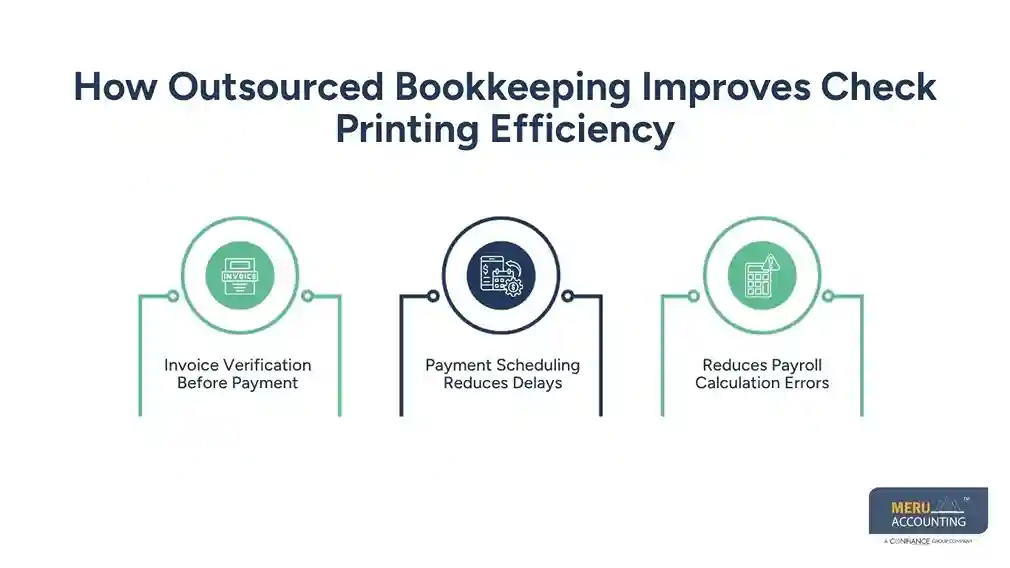
Payment Scheduling Reduces Delays
Businesses often miss payment deadlines through manual invoice processing. Late payments can affect supplier relationships and increase business costs. Outsourced bookkeeping professionals create organized payment calendars for upcoming obligations. They prepare approved invoices before businesses print checks from QuickBooks. This helps ensure payments are issued according to schedule. Consistent bill payment management supports better cash flow planning. It also helps businesses avoid unnecessary penalties.
Standardized Workflows Improve Productivity
Without standardized procedures, payment processing depends on individual employees. Staff absences or changing workloads can delay important payments. Professional bookkeeping firms create repeatable workflows for consistent payment processing. These workflows help businesses print checks from QuickBooks efficiently. Every payment follows the same review and approval process. Complete documentation supports accurate financial records every time. This structured approach improves bill payment management and reduces administrative effort.
Best Practices for Printing Checks from QuickBooks
Printing business checks involves more than selecting invoices for payment. Businesses need reliable procedures that support accurate payment processing. Strong financial controls also protect payment security and documentation. Outsourced bookkeeping professionals help businesses print checks from QuickBooks efficiently. They follow proven accounting practices that reduce risks consistently. These practices also improve payment accuracy and overall consistency.
Verify Vendor Information Before Printing
Incorrect vendor information can delay payments and increase administrative work. Vendor names and addresses should always be carefully reviewed. Payment amounts and invoice numbers also require accurate verification. Professional bookkeeping teams verify every detail before businesses print checks from QuickBooks. This additional review reduces payment errors and strengthens bill payment management. Accurate vendor records improve communication and simplify future transactions.
Maintain Proper Payment Approvals
Businesses should never issue payments without proper authorization. Clear approval procedures reduce fraud risks and strengthen financial controls. Outsourced bookkeeping professionals prepare payment batches for review. Designated managers approve transactions before businesses print checks from QuickBooks. This separation of responsibilities creates a more secure payment process. Well-defined approval procedures also strengthen bill payment management. They ensure every payment follows established company policies.
Reconcile Payments Regularly
Printing checks is only one part of the payment process. Businesses should reconcile issued checks with bank statements regularly. Accounting records should also remain accurate after every payment. Professional bookkeeping teams monitor cleared and outstanding business checks. They update financial records after businesses print checks from QuickBooks. Regular reconciliation improves reporting accuracy and financial reliability.
How Professional Bookkeepers Strengthen Bill Payment Management
Effective payment processing depends on more than issuing checks. Businesses need organized financial records, timely approvals, and accurate reporting to keep vendor payments under control. Outsourced bookkeeping professionals improve every stage of bill payment management while helping businesses print checks from QuickBooks without unnecessary delays.
Better Cash Flow Planning
Cash flow directly affects a company’s ability to pay suppliers. Early payments can reduce available working capital unnecessarily. Late payments may create penalties and strain vendor relationships. Professional bookkeepers review payment schedules and upcoming obligations carefully. They recommend suitable payment dates before businesses print checks from QuickBooks. This organized approach strengthens bill payment management and preserves cash reserves. Businesses also gain better visibility into future expenses. This makes financial planning more accurate and efficient.
Improved Financial Reporting
Every payment contributes to financial reports that management uses for decision-making. Incorrect payment records can affect expense tracking, profitability, and budgeting.
Outsourced bookkeeping professionals record every transaction accurately after businesses print checks from QuickBooks. They classify expenses correctly and reconcile payment records with accounting reports.
Reliable payment management creates accurate financial statements that support informed business decisions.
Reduced Administrative Work
Processing invoices manually requires significant employee time. Staff often spend hours entering invoices, verifying vendor information, obtaining approvals, and preparing payments.
Outsourced bookkeeping reduces this workload by managing the complete payment cycle. Businesses can print checks from QuickBooks more efficiently because invoices have already been reviewed and organized.
This streamlined payment management process allows employees to focus on customer service, operations, and business growth instead of repetitive accounting tasks.
Why Businesses Choose Outsourced Bookkeeping for QuickBooks
As businesses expand, payment volumes also increase. Managing vendor payments with limited internal resources often leads to delays and accounting errors. Outsourced bookkeeping provides experienced professionals who understand QuickBooks and maintain organized payment systems.
Experienced QuickBooks Professionals
Bookkeeping specialists work with QuickBooks daily. They understand how to organize invoices, prepare payment batches, and print checks from QuickBooks using established accounting procedures.
Their experience reduces processing errors and ensures financial records remain accurate.
Effective bill payment management also improves consistency across every payment cycle.
Strong Internal Financial Controls
Businesses benefit from clear financial procedures that reduce payment risks. Outsourced bookkeeping firms establish approval workflows, maintain supporting documentation, and separate payment responsibilities.
These controls enable businesses to print checks from QuickBooks with greater confidence while reducing the likelihood of duplicate payments or unauthorized transactions.
Well-managed bill payment management also supports stronger compliance with internal accounting policies.
Scalable Support for Growing Businesses
Business growth usually increases transaction volumes. More vendors, invoices, and payment approvals require additional accounting resources.
Outsourced bookkeeping scales with business needs. Whether a company processes twenty payments or several hundred, professional teams help businesses print checks from QuickBooks efficiently without increasing internal administrative workloads.
This flexibility supports long-term operational growth while maintaining reliable bill payment management.
How Meru Accounting Supports Efficient QuickBooks Check Printing
Managing vendor payments requires accuracy, consistency, and organized financial records. Meru Accounting simplifies this process through professional bookkeeping services. Our experienced professionals review invoices before every payment. They organize payment schedules and reconcile financial records accurately. Our team helps businesses print checks from QuickBooks efficiently. We improve bill payment management by maintaining accurate payable records. Our professionals verify vendor information before processing payments. They also support timely approvals for smoother payment workflows.
Secure accounting processes help reduce payment errors consistently. Our QuickBooks expertise improves financial reporting accuracy. Businesses also build stronger relationships with their vendors. Our bookkeeping solutions reduce routine accounting workloads. This allows businesses to focus on business performance and customer satisfaction.
From Our Expert Perspective
Many businesses consider check printing a simple accounting responsibility. Accurate payment processing requires organized records and consistent financial procedures. Careful financial oversight also supports reliable payment processing every time. Businesses that print checks from QuickBooks benefit from professional bookkeeping support. Experienced professionals verify invoices before every payment is processed. They organize payment schedules and complete regular account reconciliations. They also maintain complete documentation for every financial transaction.
Outsourced bookkeeping establishes standardized workflows for consistent payment processing. These workflows reduce manual errors and improve bill payment management. Growing payment volumes increase the need for experienced bookkeeping professionals. Professional support strengthens financial accuracy and internal financial controls. It also supports long-term business growth through organized payment processes.
Key Takeaways
- Outsourced bookkeeping simplifies the process to print checks from QuickBooks.
- Organized invoice verification helps reduce payment errors and delays.
- Consistent bill payment management strengthens vendor relationships.
- Regular reconciliations maintain accurate accounting records.
- Professional bookkeeping reduces routine administrative workloads.
FAQs
Yes, you can. Just go to the check in QuickBooks, mark it as “to print,” and try again with the correct settings.
No, a regular inkjet or laser printer works fine as long as it’s lined up and prints clearly.
Check your print setup, adjust the alignment, and try a test print on plain paper before printing again.
Yes, if you keep your check paper and printer safe. Only trusted people should have access to them.
No, check printing works best on a desktop or laptop with a connected printer. You can prepare the check on your phone but print from your computer.
optional anymore
on running the business