Think of Xero as your business’s online finance desk. It keeps your invoices, bills, bank records, and financial reports in one place. But before you can make the most of it, you need to know how the pieces fit together. That’s what Xero for dummies is all about: learning the basics without getting lost in accounting terms or complex features.
You don’t have to master the whole platform on day one. A good place to start is by setting up your business, learning how to record income and expenses, and getting familiar with bank reconciliation. This guide breaks down Xero online accounting software into practical steps so you can start using it with more confidence.
What You Will Learn From This Blog
- What Xero is and how cloud accounting works.
- How to use the main tools in Xero.
- How to set up your Xero account for the first time.
- How to send bills, track costs, and match bank feeds.
- How to view key reports and check your business health.
- When you may need help from a Xero accounting expert.
What Is Xero? Understanding Cloud Accounting for Beginners
Xero is an online accounting tool built for small and mid-sized firms. It helps owners and finance teams track daily money flow, manage bills, and view reports in one place. Since it runs in the cloud, you can log in from a web browser or use its mobile app.
Unlike old desktop tools, cloud accounting does not rely on one PC to store and run your books. Your data is held online, and users with the right access can work from any place with an internet link.
How Does Cloud Accounting Work?
Cloud accounting stores your books on secure online servers. When you log in, you can view the latest data and make changes based on your user role. The system saves these changes online, so you do not need to move files from one PC to the next.
For example, if your bookkeeper records a bill, you may be able to view it from your own login. If you send an invoice to a client, the sale can then be tracked in your books. This makes it easier for teams to work with the same set of records.
Who Should Use Xero?
Xero can be a good fit for:
- Small firms that need a clear way to track sales and costs.
- Startups that want to set up their books from day one.
- Service firms that send bills to clients each month.
- Online stores that need to track sales and fees.
- Accountants and bookkeepers who manage books for more than one client.
Xero online accounting software can also help firms that work with remote teams or outside bookkeepers. Yet, the right plan and tools will depend on your firm size, needs, and local tax rules.
How Is Xero Different From Desktop Accounting Tools?
A key benefit is that you can access your books online. You can also link bank feeds, set up repeat bills, and share access with your team. This can cut down on manual work and reduce the need to send files back and forth.
Still, cloud access does not mean every task runs on its own. You must check bank matches, tax codes, and account records to keep your books right.
Xero for Dummies: Understanding the Main Features
Before you start using Xero, it helps to know what each key tool does. This makes it easier to find the right task and keep your books in order.
Dashboard and Business Overview
The dashboard is the first screen you see when you log in. It gives you a quick view of key data, such as bank balances, money owed to you, bills due, and cash flow.
You can use this view to spot late payments or bills that need your attention. It is a good place to start each time you check your books.
Invoicing and Customer Management
The invoicing tool lets you make and send bills to clients. You can add the client name, date, items, rates, tax, and due date. Once you send the invoice, Xero can help track its status.
You can also view unpaid bills and send payment reminders. This helps you keep track of money due and follow up with clients on time.
Expense Tracking and Bill Management
You can add bills from vendors and record costs such as rent, travel, tools, and office needs. Each cost must be linked to the right account so that your reports show the right figures.
Xero also lets you store bill data and track due dates. This can help you plan cash needs and avoid late fees.
Bank Feeds and Bank Reconciliation
Bank feeds bring bank data into Xero, based on the link and feed options your bank supports. You can then match each bank item to a bill, sale, or other record.
For example, if a client pays a $500 bill, you can match the $500 bank deposit to that open invoice. This marks the bill as paid and keeps your books in line with your bank data.
Do not match each item just because the amounts look the same. Check the date, name, and reason for each payment first.
Financial Reports and Cash Flow Tracking
Xero can make key reports, such as profit and loss, balance sheet, and cash flow reports. These help you see how much your firm earns, what it owes, and how much cash it has.
You can use these reports to track trends and spot issues. But the data will only be useful if your books are up to date and the entries are right.
Inventory and Purchase Orders
If you sell goods, you may use Xero tools to track stock items and sales. You can also make purchase orders to track goods you plan to buy.
The tools you can use may vary by plan and setup. Firms with large or complex stock needs may need a separate stock tool that links with Xero.
optional anymore
on running the business
How to Set Up Xero for the First Time
A good setup is key to clean books. Before you add sales or costs, take time to enter the right firm data and set up your accounts.
Step 1: Create Your Xero Account
Go to the Xero site and pick a plan that fits your needs. Enter your email, name, and other details to create your login. You can then set up your firm in the system.
Step 2: Enter Your Business Details
Add your legal firm name, address, tax details, base currency, and year-end date. Check each field with care, as some of these details can affect reports and tax records.
Step 3: Set Up Your Chart of Accounts
The chart of accounts is a list of all the accounts used to sort your money records. These may include:
- Assets, such as cash, stock, and tools.
- Liabilities, such as loans and unpaid bills.
- Equity, such as owner funds.
- Income, such as sales and service fees.
- Costs, such as rent, wages, and ads.
You can use the default list in Xero or change it to suit your firm. Avoid adding too many accounts with the same use, as this can make reports hard to read.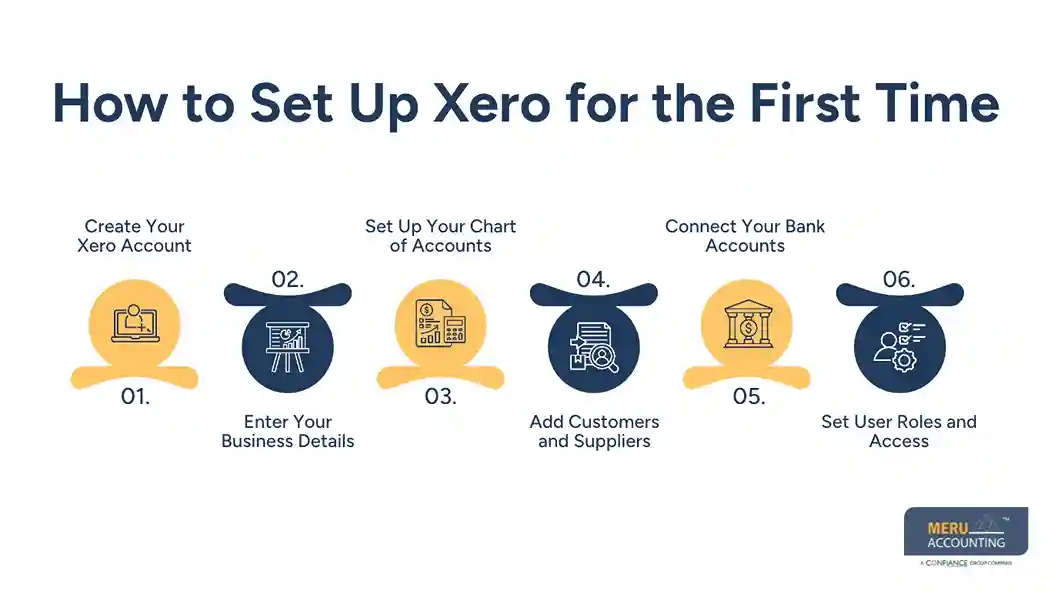
Step 4: Add Customers and Suppliers
Enter the names and key details of your clients and vendors. This saves time when you make bills, record costs, and track due amounts.
If you have old data in another tool, check it before you import it. Wrong names or duplicate records can cause issues later.
Step 5: Connect Your Bank Accounts
Link your bank accounts if your bank and plan support the feed. Check the link date and the first set of items that come in.
You may also need to add opening bank balances. Make sure these match your bank records for the date you start using Xero.
Step 6: Set User Roles and Access
Add team members or your bookkeeper and give each person the right level of access. Do not give all users full access if they only need to view or record a few items.
This helps keep your data safe and makes it clear who can edit each part of your books.
How to Use Xero for Everyday Accounting Tasks
Once your setup is done, you can use Xero to handle daily bookkeeping. A set routine can help you keep records up to date and spot errors early.
Create and Send Customer Invoices
Go to the sales area and create a new invoice. Add the client, date, due date, item, rate, and tax details. Check the full bill before you send it.
Once sent, keep an eye on its status. Follow up on late bills so that you can collect cash on time.
Record Bills and Supplier Payments
Add each vendor bill to Xero as soon as you get it. Enter the bill date, due date, amount, tax, and account code. Check the details with the source bill before you save it.
When you pay the bill, record the payment or match it to the bank feed. This keeps your accounts payable records up to date.
Track Business Expenses and Receipts
Record costs as they take place. Add a clear note and attach a receipt where needed. This makes it easier to check why the cost was made and who it was for.
Do not mix personal and business costs. If a personal cost is paid from a business bank account, record it in the right way based on your firm’s setup.
Reconcile Bank Transactions
Review bank items on a set basis, such as each day or week. Match each item to the right bill, sale, or cost. If you cannot find a match, check the source record before you make a new entry.
This step is key to clean books. A bank feed can bring in data, but it cannot tell you on its own why each payment was made.
Review Unpaid Invoices and Bills
Check who owes your firm money and which bills are due. Use the aged receivable and payable reports to find late items.
A clear follow-up plan can help you get paid on time and avoid missed vendor due dates.
How to Generate and Understand Financial Reports in Xero
Reports help you see what is going on in your firm. They turn daily entries into data you can use to plan and make choices.
Profit and Loss Report
The profit and loss report shows your income, costs, and net profit over a set time. It can help you see if sales are up, costs are high, or profit is down.
For example, if sales rise but profit falls, you may need to check labor, stock, rent, or other costs.
Balance Sheet
The balance sheet shows what your firm owns, what it owes, and the value left for its owners. It is based on assets, liabilities, and equity.
Review it to check cash, loans, unpaid bills, and other key balances. A firm can show a profit and still face cash flow issues, so do not use profit alone to judge its health.
Cash Flow Report
A cash flow report helps you track cash that comes in and goes out. It can help you plan for payroll, rent, loan payments, and other costs.
Check both past cash flow and near-term needs. This can help you spot a cash gap before it turns into a larger issue.
Accounts Receivable and Payable Reports
These reports show who owes you money and what your firm owes to vendors. Use them to plan follow-ups, pay bills on time, and keep cash flow in view.
How to Review Reports With Care
Do not just run a report and accept each figure at face value. Check that bank accounts are matched, old bills are closed, and costs are in the right accounts. Also review the date range and report basis before you share the data.
Xero Accounting Services by Meru Accounting
Learning where to click in Xero is one thing; knowing how to keep your books accurate is another. A bank transaction may need more than a simple match, an expense needs the right account code, and an unpaid invoice needs proper follow-up. These details matter when you rely on Xero to track your business finances.
Meru Accounting helps businesses manage these tasks through dedicated Xero accounting support. Our services cover the practical work behind your Xero records, including:
- Xero Setup and Chart of Accounts: Configure your Xero account, set up account codes, enter opening balances, and organize your financial records.
- Daily Xero Bookkeeping: Record sales, expenses, customer invoices, vendor bills, and other business transactions.
- Bank and Credit Card Reconciliation: Match transactions, investigate differences, and review unreconciled items against bank statements.
- Accounts Payable and Receivable Management: Process vendor bills, track due dates, monitor unpaid invoices, and manage payment follow-ups.
- Xero Account Cleanup and Catch-Up: Review past transactions, correct coding errors, resolve duplicate entries, and bring overdue books up to date.
- Month-End Closing and Financial Reports: Reconcile key accounts, review balances, and prepare profit and loss statements, balance sheets, and other financial reports.
Whether you need help setting up Xero for the first time or want an experienced team to manage your ongoing books, Meru Accounting can help you get more value from your accounting system. Our focus is on keeping your Xero records accurate, organized, and ready for business decisions.
Our Expert Insight
One thing beginners often overlook is that Xero’s reports are only as useful as the data behind them. For example, a business owner might see a profit on the income statement and assume the business is doing well, even when several large customer invoices remain unpaid. Profit and available cash aren’t the same thing, and confusing the two can lead to poor spending decisions.
We recommend reviewing the accounts receivable aging report alongside the profit and loss statement. This gives you a better picture of both reported earnings and the cash you’re still waiting to collect. Getting into this habit early can help you make more informed business decisions as your company grows.
Key Takeaways
- Xero is a cloud-based tool for daily business accounting.
- Xero for dummies starts with learning the core tools and setting up your books the right way.
- A clear chart of accounts helps sort sales, costs, assets, and debts.
- Bank feeds save time, but each item still needs a review.
- Regular checks help keep bills, invoices, and bank data up to date.
- Profit and loss, balance sheet, and cash flow reports show key parts of your firm’s health.
- Expert help can make setup, cleanup, and month-end review more accurate.
FAQs
Xero helps small businesses manage invoices, expenses, bills, bank transactions, and financial reports. It also makes it easier to track payments and keep accounting records organized.
Both are good options for small business accounting. Xero offers an easy-to-use interface and cloud access, while QuickBooks has a wide range of accounting and reporting tools. The right choice depends on your business needs and budget.
Xero offers several subscription plans, with pricing based on features and usage limits. Costs vary by country, so check Xero’s official pricing page for current rates.
Yes. Xero supports bank feeds that import transactions from eligible bank accounts. You can then match these transactions with invoices, bills, and other records.
Not always, but an accountant can help with tax rules, complex entries, year-end adjustments, and financial reviews. Xero handles bookkeeping tasks, but it doesn’t replace professional accounting advice.
optional anymore
on running the business