A WooCommerce store can show 500 orders at the end of the month, but that does not mean tax accounting is as simple as checking one sales total. Some orders may be taxable, others may not be, while refunds, discounts, shipping, and payment fees can change the final numbers. This is where QuickBooks for WooCommerce becomes useful. It brings sales data into the accounting process so that the amounts charged, refunded, and recorded can be checked in one place.
The real value of QuickBooks for WooCommerce is not just saving data entry time. When WooCommerce QuickBooks integration is set up well, it creates a clearer link between the order placed by a customer, the tax charged on that order, and the amount recorded in QuickBooks.
Still, software does not decide a store’s tax duty. Tax rules depend on the business, its customers, products, locations, and the laws that apply. The accounting system should record those decisions correctly, not make them on its own.
What You Will Learn From This Blog
- How QuickBooks for WooCommerce can organize taxable sales data.
- How WooCommerce QuickBooks integration can structure sales tax transactions.
- How taxable and nontaxable orders can be reviewed.
- How to compare WooCommerce tax data with QuickBooks records.
- Which tax reports can be reviewed during the accounting process.
- How to build a simple tax review routine for an ecommerce store.
How QuickBooks for WooCommerce Handles Taxable Sales Data
Tax Data Starts With the Order
The tax story begins before the money reaches the bank. When a customer places an order, the transaction may include the product price, discount, shipping, tax, and payment details. QuickBooks for WooCommerce can bring this information into the accounting workflow so the tax amount is not treated as part of one unexplained deposit.
Product Tax Rules Need Care
Two products in the same store may not always receive the same tax treatment. A store may also use different tax classes for different types of products.
Before relying on QuickBooks for WooCommerce, the tax settings in WooCommerce should be checked. WooCommerce provides settings for tax classes and tax rates, but the business remains responsible for determining its tax obligations.
Customer Location Can Affect Tax
Consider a store that sells to customers in several states. A $500 order from one customer may not produce the same tax result as a $500 order from another location.
This makes customer location an important part of the tax record. QuickBooks for WooCommerce can organize the transaction data, but the correct tax treatment must begin with the store’s setup and applicable rules.
Refunds Must be in the Tax Review
A refund changes more than the amount received by the customer. It can also change the sales amount and the related tax amount.
For example, if a customer receives a full refund on a $200 taxable order, the accounting record should reflect the effect of that refund rather than leaving the original tax amount untouched.
Fees Should not be Mixed With Sales Tax
Payment gateways may deduct fees before sending money to the bank. This can make a $1,000 sales total turn into a smaller bank deposit.
QuickBooks for WooCommerce should keep sales tax separate from gateway fees, refunds, and other deductions so the accounting team can see why the bank amount differs from the order total.
How WooCommerce QuickBooks Integration Organizes Sales Tax Transactions
Sales Can Flow into One Accounting System
An ecommerce store can create a large amount of transaction data every day. Entering each order by hand takes time and creates more room for data-entry errors.
With WooCommerce QuickBooks integration, order information can move into QuickBooks based on the selected setup, giving the accounting team a central record for sales and related transactions.
Tax Amounts Can be Checked
The tax amount shown on a WooCommerce order should have a clear match in the accounting records.
A WooCommerce QuickBooks integration setup makes this comparison easier because the team can review the source transaction and its accounting entry instead of starting from a bank statement.
Discounts Need the Right Treatment
Imagine a customer buys products worth $150 and receives a $30 coupon. The taxable amount may not simply be the original $150.
Discount rules can affect the tax calculation, so WooCommerce QuickBooks integration should be tested with discounted orders before the store depends on automated entries.
Shipping Tax Needs Review
Shipping is another area that can create unexpected differences. Depending on the applicable tax rules and store settings, shipping may or may not be taxable.
A store should therefore test orders that include shipping when setting up WooCommerce QuickBooks integration, rather than checking only product-only orders.
Multiple Payment Methods Need a Clear Map
A store may accept card payments, PayPal, digital wallets, and other payment methods. Each payment channel can have its own fees and payout schedule.
WooCommerce QuickBooks integration can organize the sales data, but payment accounts and fee accounts still need a clear setup so the final bank reconciliation makes sense.
How QuickBooks for WooCommerce Tracks Taxable and Nontaxable Orders
Taxable Orders Need Clear Tax Codes
A taxable sale should reach the accounting system with the correct tax treatment. If the tax code or account is wrong, the total order may still look correct while the tax report is not. This is why QuickBooks for WooCommerce should be tested with actual store scenarios before large volumes of data are processed.
Nontaxable Sales Need a Reason
A zero-tax order is not automatically an error, but it should have a clear reason. It may relate to the product, customer, location, exemption, or another applicable rule.
QuickBooks can provide reports for reviewing nontaxable transactions, giving the accounting team a way to question unusual zero-tax sales.
Mixed Orders Need More Attention
Some orders contain both taxable and nontaxable items. Treating the entire order as one tax category can create an incorrect result.
QuickBooks for WooCommerce should therefore be checked using mixed orders during setup. This gives the team a chance to see whether each line is being recorded as expected.
Exempt Customers Should be Checked
A tax-exempt customer should not simply appear as another zero-tax transaction with no explanation. The exemption status and related records should be reviewed according to the rules that apply to the business.
This creates a clearer record when the store later needs to explain why tax was not charged.
Taxable Status Should be Tested
Before closing a tax period, review a sample of taxable, nontaxable, refunded, discounted, and mixed orders.
This simple check can reveal a wrong tax class or account mapping before the issue affects a much larger set of transactions in QuickBooks for WooCommerce.
How WooCommerce QuickBooks Integration Simplifies Tax Reconciliation
Start With the WooCommerce Tax Total
Tax reconciliation should begin with the source data. WooCommerce provides tax reports that can be reviewed by tax code and date.
The accounting team can then compare those figures with QuickBooks. WooCommerce QuickBooks integration makes this process more direct because both sides of the transaction are available for review.
Compare Sales Before Comparing Tax
If the sales totals do not match, jumping straight to the tax difference can waste time.
First compare sales, refunds, discounts, and other major amounts. Once the sales figures are understood, the tax difference becomes easier to trace.
Match Refunds and Adjustments
A refund may be processed on one date while the original sale was recorded on another. Payment adjustments can create similar timing gaps.
During a WooCommerce QuickBooks integration review, these items should be checked before assuming that a tax amount is wrong.
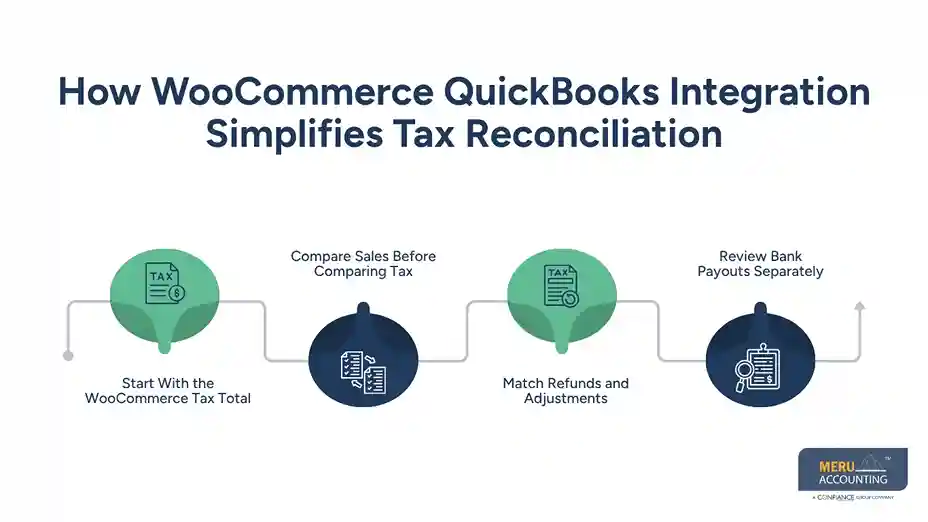
Review Bank Payouts Separately
A bank deposit is not the same thing as ecommerce sales. A payment processor may deduct fees, refunds, disputes, or other amounts before sending the payout.
For example, $5,000 in WooCommerce sales could result in a $4,850 bank deposit. The $150 difference needs to be explained rather than treated as missing sales.
Record and Fix Differences
When a difference appears, note its cause before making an adjustment. It may be a missing order, duplicate transaction, refund timing issue, tax mapping error, or payment fee.
Keeping this note with the reconciliation creates a useful record for the next review and makes recurring differences easier to spot.
optional anymore
on running the business
What Tax Reports Can You Review in QuickBooks for WooCommerce?
Sales Tax Liability Report
The sales tax liability report can show figures such as taxable sales, nontaxable sales, and tax collected for a selected period.
For QuickBooks for WooCommerce users, this report can provide an accounting-side view that can be compared with WooCommerce tax data.
Nontaxable Transaction Review
Nontaxable sales deserve their own review because a zero-tax transaction can have several possible reasons.
QuickBooks Online provides a nontaxable transaction review report that can be used to examine these sales for a selected period.
Taxable Sales Detail
A detailed taxable sales report can make it easier to move from a total figure to the transactions behind that figure.
If the total tax does not match WooCommerce, the accounting team can use transaction-level details to look for unusual orders, refunds, or tax treatment.
Tax Reports by Period
Tax reports should be compared using the same date range. A monthly WooCommerce report should not be compared with a QuickBooks report covering a different period.
This is especially important when orders, refunds, and payment payouts occur on different dates.
WooCommerce Tax Reports
WooCommerce provides tax reports by tax code and by date. These reports can act as the source-side reference during the accounting review.
Comparing them with QuickBooks for WooCommerce records can show whether the tax data recorded in the accounting system follows the original store transactions.
Best Practices For Using QuickBooks for WooCommerce for Tax Accounting
Set Tax Rules Before Sync
Tax settings should be checked before large volumes of orders are brought into QuickBooks. A small mapping error can become much harder to correct after thousands of transactions are recorded.
WooCommerce also advises businesses to seek professional tax advice when determining their tax obligations.
Use a Fixed Reconciliation Routine
Tax accounting becomes easier to control when the same checks are done on a set schedule.
A monthly review of sales, tax, refunds, fees, and payouts can reveal issues while the transactions are still fresh.
Keep Source Reports
Save the WooCommerce tax report, payment reports, refund details, and QuickBooks reports used during each reconciliation.
These records can be useful if an old transaction needs to be checked months later.
Test New Tax Changes
When a new product, tax class, payment method, or tax setting is added, test it before processing a large number of orders.
The same approach should be used when making changes to WooCommerce QuickBooks integration, especially if account mapping or tax treatment is affected.
Review Before Filing
Accounting software can organize figures, but the final tax position still needs review.
A qualified tax professional should determine the tax obligations and filing treatment that apply to the business, while the accounting team can focus on making sure the underlying figures are complete and consistent.
How Meru Accounting Can Help With WooCommerce Tax Accounting
Review WooCommerce Sales Data
Meru Accounting can review WooCommerce order data against accounting entries to identify gaps in sales, tax, refunds, discounts, and payment records.
Check QuickBooks Mapping
Our team can review the mapping of products, tax amounts, refunds, fees, and payment transactions within QuickBooks for WooCommerce workflows.
Reconcile Tax Reports
Meru Accounting can compare WooCommerce tax reports with QuickBooks reports for the same period and identify differences that need further review.
Organize Tax Records
We can keep the reports used during reconciliation together, including sales reports, tax reports, payment data, and adjustment details.
Add an Accounting Review
WooCommerce QuickBooks integration can reduce manual work, but automated data still needs accounting review. Meru Accounting provides bookkeeping and accounting services for ecommerce businesses that need their transaction and tax data checked on a regular basis.
Our Expert Perspective
Our experience with ecommerce accounting shows that accurate tax reporting starts with clean order, product, refund, and tax data. QuickBooks for WooCommerce can organize financial data, but it does not decide where a business must collect tax, so tax rules and business facts still need review. Reconciliation is also important because even a small difference, such as $10, can point to a mapping issue that affects many orders. As sales grow, stores need a more structured review of tax data, refunds, payment fees, and reconciliation rather than relying only on automated entries.
Key Takeaways
- QuickBooks for WooCommerce can bring ecommerce sales and tax data into the accounting workflow.
- Taxable and nontaxable orders should be reviewed as separate transaction groups.
- Refunds, discounts, shipping, and payment fees can change the figures used in tax reconciliation.
- WooCommerce QuickBooks integration can reduce manual entry but still needs testing and review.
- WooCommerce tax reports can be compared with QuickBooks reports for the same period.
- Tax differences should be traced to their source instead of being changed without a reason.
- Tax software can organize data, but a qualified tax professional should determine the tax treatment that applies to the business.
FAQs
QuickBooks for WooCommerce records WooCommerce sales, sales tax, refunds, fees, and other order data in QuickBooks.
QuickBooks for WooCommerce records sales tax from WooCommerce orders when the tax settings and account mapping are set correctly.
WooCommerce QuickBooks integration lets businesses compare WooCommerce tax data with QuickBooks records to find missing or incorrect amounts.
Yes, QuickBooks can show taxable and nontaxable sales in its tax reports when each transaction has the correct tax treatment.
Compare WooCommerce sales, tax, refunds, and adjustments with QuickBooks reports for the same period and review any differences.
optional anymore
on running the business