
Adding QuickBooks to your WooCommerce store can change how you manage your books, but it’s more than just moving orders from one system to another. WooCommerce QuickBooks integration can bring your store data into your books, giving you a clear way to track sales and keep your records in sync as your store grows.
The real value comes from knowing what to link, how to record the data, and what still needs a check. In this blog, we’ll show how WooCommerce with QuickBooks works, what data you should sync, and what to watch for when you use it for ecommerce bookkeeping.
What You Will Learn From This Blog
- What WooCommerce QuickBooks integration does
- How WooCommerce data can flow into QuickBooks
- Which sales and payment data should be synced
- How to set up the integration
- How to record sales, fees, payouts, and inventory
- How to check and fix differences between WooCommerce and QuickBooks
- When professional bookkeeping support may be useful
What Is WooCommerce QuickBooks Integration?
WooCommerce QuickBooks integration links your WooCommerce store with QuickBooks so key store data can move into your accounting system. Depending on the tool and setup you use, this may include orders, customers, products, payments, fees, refunds, and other transaction data.
The goal is not just to move data. The goal is to make sure each transaction reaches the right account in QuickBooks.
For example, a $100 order may not result in a $100 bank deposit. A payment processor may take a $3 fee and send $97 to your bank. If the books only show the $97 deposit as sales, your revenue and fees can be wrong.
That is why WooCommerce with QuickBooks needs more than a simple connection. Your sync rules should match the way your store gets paid and how you track sales.
How Does WooCommerce Work With QuickBooks?
When you use WooCommerce with QuickBooks, the integration acts as a bridge between your store and your accounting file. WooCommerce holds order and customer data, while QuickBooks is used to keep your financial records.
The exact data flow depends on the integration tool you use. Some setups may send each order into QuickBooks. Others may group sales or send payout data based on payment activity.
A basic flow may look like this:
WooCommerce order → payment processor → processor fee → payout → bank account → QuickBooks
Each step matters. If an order is recorded but the payment fee is missed, the books will not show the full cost of the sale. If a payout is recorded without matching the related sales, bank reconciliation can also become harder.
A good WooCommerce QuickBooks integration should fit this full flow instead of looking at orders alone.
How to Set Up WooCommerce QuickBooks Integration
A clean setup starts before you turn on the sync. First, review your WooCommerce products, payment methods, tax settings, and QuickBooks chart of accounts.
Next, connect WooCommerce and QuickBooks through your chosen integration tool. Map the key items, such as sales, refunds, fees, shipping, tax, and inventory accounts.
Then set your sync rules. Decide whether orders, payments, or payouts will drive your accounting entries. The right choice depends on your store and payment flow.
Before using WooCommerce QuickBooks integration for all new transactions, test a small set of orders. Check the result in QuickBooks and compare it with WooCommerce.
Look for:
- Correct sales amount
- Correct discounts
- Correct tax
- Correct payment fee
- Correct refund treatment
- Correct payout amount
- Correct account mapping
Testing early can help prevent hundreds of incorrect entries later.
optional anymore
on running the business
What Data Should You Sync From WooCommerce to QuickBooks?
Not every store needs the same sync setup. Before using a WooCommerce QuickBooks integration, decide which data needs to move into QuickBooks and how it should be recorded.
Orders and Sales
Order data is the base of your ecommerce sales records. Your setup may need to capture gross sales, discounts, shipping income, and tax collected.
Payment Processor Payouts
A processor may send one bank deposit for many orders. Your books need a way to match that deposit with the sales and fees behind it.
Payment Fees
Processor fees reduce the amount you receive. They should be tracked as expenses rather than reducing sales.
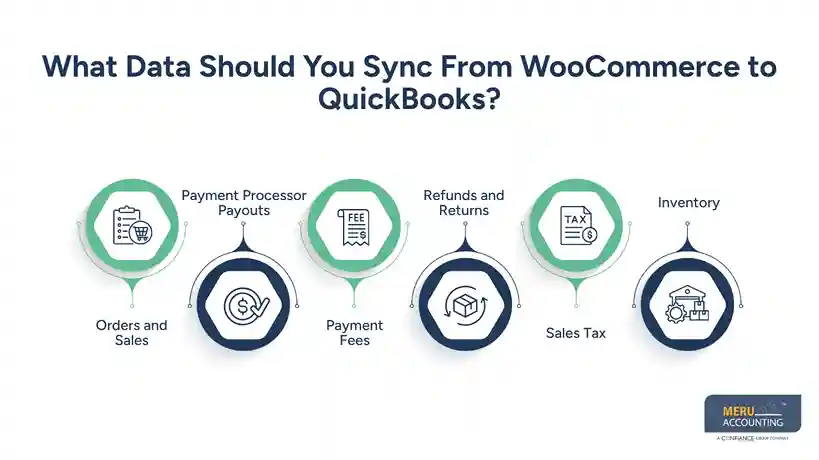
Refunds and Returns
Refunds should be recorded in a way that keeps your sales and customer balances clear. Your process should also account for returned goods when inventory is involved.
Sales Tax
Sales tax collected from customers is not the same as business income. It should be tracked as a tax liability based on your accounting setup.
Inventory
If you sell physical goods, product counts and inventory value need attention. A store can have correct sales data but still show the wrong inventory balance.
How to Set Up WooCommerce QuickBooks Integration
A clean setup starts before you turn on the sync. First, review your WooCommerce products, payment methods, tax settings, and QuickBooks chart of accounts.
Next, connect WooCommerce and QuickBooks through your chosen integration tool. Map the key items, such as sales, refunds, fees, shipping, tax, and inventory accounts.
Then set your sync rules. Decide whether orders, payments, or payouts will drive your accounting entries. The right choice depends on your store and payment flow.
Before using WooCommerce QuickBooks integration for all new transactions, test a small set of orders. Check the result in QuickBooks and compare it with WooCommerce.
Look for:
- Correct sales amount
- Correct discounts
- Correct tax
- Correct payment fee
- Correct refund treatment
- Correct payout amount
- Correct account mapping
Testing early can help prevent hundreds of incorrect entries later.
How to Record WooCommerce Sales in QuickBooks
Record sales based on the full sale flow, not just the amount that hits your bank.
Say a buyer pays $200 for an order. The payment firm takes a $6 fee and sends $194 to your bank. Your books should show the $200 sale and the $6 fee, not treat the $194 as the full sale.
The same rule can apply to sales with a deal. If an item sells for $100 and the buyer gets a $10 cut, your sales records should show the sale and the cut in line with your book setup.
With WooCommerce with QuickBooks, account maps help keep these entries in line. Still, check the maps from time to time, most of all when you add new items, payment tools, or sales sites.
How to Handle Payment Processor Fees and Payouts
Payment processor fees are one of the most common areas where ecommerce books can go off track.
For example:
- Customer payment: $500
- Processor fee: $15
- Bank payout: $485
If your books record only the $485 deposit as sales, you lose the link between the full sale and the fee.
A better process records the sale, tracks the processor fee as an expense, and then matches the net payout to the bank deposit.
This is where WooCommerce QuickBooks integration can save time, but only when the integration is mapped to the right accounts.
You should also check payout reports against bank deposits. A payout may include many orders, refunds, fees, or other adjustments. A deposit that does not match the expected amount should be reviewed instead of simply being marked as sales.
How to Track Ecommerce Inventory With WooCommerce and QuickBooks
Inventory adds another layer to WooCommerce with QuickBooks. Your store may show how many units are available, while QuickBooks tracks the financial value of those goods.
When you buy inventory, the purchase should be recorded in the right account. When goods are sold, the cost of those goods may need to move from inventory to cost of goods sold based on your accounting method.
You also need to watch for:
- Stock adjustments
- Damaged goods
- Returns
- Missing items
- Product cost changes
- Bundles and variations
- Inventory received but not yet sold
An integration can move data, but it cannot fix poor product records or wrong costs. Review your inventory setup before relying on automated entries.
How to Reconcile WooCommerce Transactions With QuickBooks
Even with a well-set WooCommerce QuickBooks integration, reconciliation is still needed.
Start by comparing WooCommerce sales with the sales recorded in QuickBooks for the same period. Then compare processor reports with the related QuickBooks entries and bank deposits.
Check for:
- Missing orders
- Duplicate orders
- Unmatched payouts
- Wrong fees
- Refund differences
- Tax differences
- Inventory variances
Do not wait until year-end to find these issues. Monthly checks make it easier to find the source of a difference while the transaction details are still easy to review.
For stores with high order volume, a clear reconciliation routine is even more important. WooCommerce with QuickBooks works best when automation handles repeat tasks while someone still reviews the results.
Meru Accounting Services for WooCommerce With QuickBooks Integration
A WooCommerce store can have hundreds of orders, several payment methods, refunds, fees, and inventory changes in the same month. The hard part isn’t just getting that data into QuickBooks. It’s making sure the data lands in the right place and still ties to the store and bank records.
At Meru Accounting, we handle the bookkeeping work around WooCommerce with QuickBooks, including:
- Sales bookkeeping: Record WooCommerce sales, discounts, refunds, and other order activity.
- Payment tracking: Track processor fees, payouts, and deposits so net bank deposits can be tied back to sales.
- Inventory and COGS: Track inventory costs, stock changes, and cost of goods sold as part of the monthly books.
- Reconciliation: Match WooCommerce activity, payment reports, and bank records to find gaps or duplicate entries.
- A/R and A/P: Keep customer balances, bills, and vendor payments up to date.
- Cleanup and catch-up: Fix old or mixed entries when Ecommerce books have fallen behind.
- Reporting: Prepare monthly financial reports and tax-ready books for your CPA or tax team.
We can work within your existing WooCommerce and QuickBooks setup and adjust the process to fit your payment flow, sales channels, and accounting needs. This lets your team spend less time sorting through transactions and gives you books that are ready for review each month.
Our Expert Insight
Don’t assume that sending every WooCommerce order into QuickBooks is the best setup. For a store with a high order count, posting each order can make the books hard to review without adding much value.
We often look at the store’s order volume, payment flow, and reporting needs before choosing how much data should sync. Some stores may work well with daily sales summaries, while others may need more detail for refunds, fees, or product-level records.
The goal is to keep enough detail to support the books and reports without filling QuickBooks with entries that make month-end work harder. That choice should be made before the WooCommerce QuickBooks integration is set up, not after the books become hard to manage.
Key Takeaways
- WooCommerce QuickBooks integration can reduce manual data entry for ecommerce stores.
- A connection alone does not guarantee accurate books.
- Sales, fees, refunds, taxes, payouts, and inventory need clear account mapping.
- Bank deposits should be matched to the transactions behind them.
- Inventory needs separate review because sales data and stock value are not the same thing.
- Regular reconciliation can help find duplicate, missing, or incorrect entries.
- WooCommerce with QuickBooks works best when automation is paired with a clear review process.
- Professional bookkeeping support can be useful as order volume and transaction types grow.
FAQs
Yes. QuickBooks can work well for WooCommerce stores when sales, expenses, payouts, and inventory are set up and tracked the right way.
You’ll typically need an integration tool to connect WooCommerce and QuickBooks. The features and data that sync depend on the tool you use.
Not always. High-volume stores may prefer summary entries, while smaller stores may need more detail for sales and refunds.
Yes, but your WooCommerce tax settings and QuickBooks accounts need to be set up correctly. Sales tax collected should be kept separate from sales income.
Review your products, payment methods, tax settings, and chart of accounts first. Test a few orders before turning on the full sync.
optional anymore
on running the business