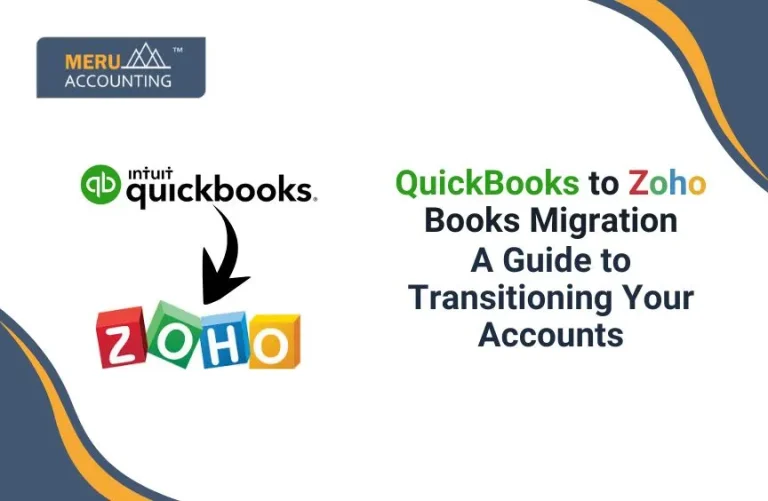
Switching accounting systems is a big step for any business. But with the right plan, your QuickBooks to Zoho Books migration can be simple and stress-free. In this blog, we’ll understand each step to ensure a smooth migration from QuickBooks to Zoho Books.
Why Choose Zoho Books?
Simple and User-Friendly Interface
Even beginners can understand the dashboard. This ease supports a smooth QuickBooks to Zoho Books migration.
Affordable Pricing for All Business Sizes
It offers flexible plans with great features. Cheaper than QuickBooks for similar tools.
Great for Small to Medium Businesses
It fits startups and growing businesses. Helps manage all core financial tasks.
Works Well with Other Zoho Apps
Sync with Zoho CRM, Inventory, and Projects. It saves time and boosts efficiency.
Cloud-Based and Mobile-Friendly
Access your data anytime, anywhere. Use it on desktop, tablet, or phone.
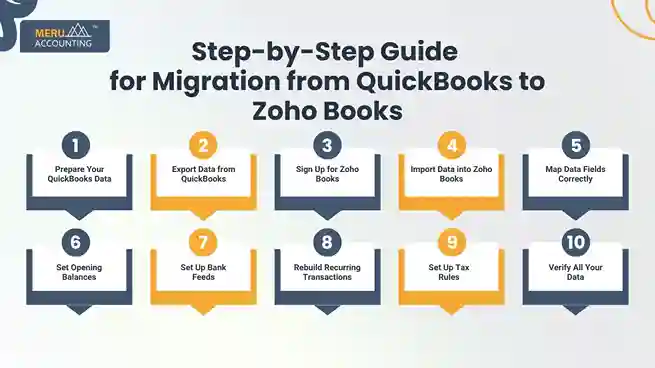
Step-by-Step Guide for Migration from QuickBooks to Zoho Books
Let’s now look at each step of your migration from QuickBooks to Zoho Books in a simple and clear way.
1. Prepare Your QuickBooks Data
- Check your QuickBooks file for errors or duplicates
Make sure all books are balanced and entries are correct. - Reconcile accounts and fix old entries
Clean up the data to avoid problems later. This will make your import smooth.
2. Export Data from QuickBooks
Export your data as CSV, XLS, or IIF files.
- Export your Chart of Accounts
This includes income, expense, and liability accounts. Make sure all are updated. - Export customer and vendor lists
These will help keep contact and billing details intact. Export all fields, including emails. - Export items and inventory data
Include product names, codes, and stock levels. Helps you continue selling without delay. - Export invoices, bills, and payments
Export both open and closed transactions. You’ll need these for reference and balances. - Export your bank transaction history
Get a file with recent transactions for easy import. Include dates, amounts, and descriptions.
3. Sign Up for Zoho Books
- Choose the right Zoho Books plan
Match it with your business size and needs. There are monthly and yearly billing options. - Create your Zoho Books account
Fill in your business info and set your currency. Choose your time zone and fiscal year. - Add users and set roles
Give access to your accountant or team. Set permissions as needed for each role.
4. Import Data into Zoho Books
- Use the Zoho Books import tool
The migration from QuickBooks to Zoho Books requires careful data import to avoid errors. It has built-in templates and step-by-step guides. Import each type of data separately. - Import your Chart of Accounts
Make sure each account has the correct type. Link them to the right categories. - Import customers and vendors
Keep all contact details in place. Include GST/VAT numbers if needed. - Import items and inventory details
Match item codes and names to avoid errors. Set tax rates and units correctly. - Import sales and purchase data
Import open invoices, bills, and payments. Check each file before uploading.
5. Map Data Fields Correctly
- Match each column with Zoho Books fields
Field names may differ between systems. Use Zoho’s sample templates to map correctly. - Double-check every field before importing
A mismatch can create errors later. Always preview your import. - Keep a backup of all import files
Save copies in case you need to re-upload. This is good practice for record-keeping.
6. Set Opening Balances
- Go to Settings > Opening Balances in Zoho Books
This lets you set the financial starting point. Pick a date for your balances. - Enter accurate balances for each account
Use the final balances from QuickBooks. This will help match reports later. - Add unpaid invoices and bills
These will be carried over from QuickBooks. Make sure due dates are correct.
7. Set Up Bank Feeds
- Connect your bank accounts in Zoho Books
Use bank feeds to pull real-time data. This saves time and reduces manual entries. - Import past bank transactions
Match them with old entries in Zoho Books. Helps in accurate reconciliation. - Set rules for auto-matching
Zoho Books can learn and automate entries. Speeds up your bookkeeping.
8. Rebuild Recurring Transactions
- Manually set up recurring invoices and bills
These don’t always carry over. Create them fresh in Zoho Books. - Add reminders and automation rules
Choose how often to repeat each entry. Add alerts for clients and your team. - Test one cycle before going live
Make sure everything works properly. Review auto-generated entries.
9. Set Up Tax Rules
- Create tax settings based on your country
Use Zoho’s tax tools for GST, VAT, or sales tax. Match QuickBooks settings where possible. - Assign taxes to products and services
Make sure the right rates apply. Avoid overcharging or undercharging. - Apply taxes to invoices and bills
Review if taxes are showing correctly. Run a sample invoice for testing.
10. Verify All Your Data
- Check every major report in Zoho Books
Compare Trial Balance, P&L, and Balance Sheet. They should match QuickBooks data. - Review all imported data
Look for missing or duplicate entries. Fix them before going live. - Ask your accountant to review the setup
A second opinion is always good. It ensures accuracy and peace of mind.
Tips for a Smooth QuickBooks to Zoho Books Migration
For a Seamless QuickBooks to Zoho Books Migration, Follow These Tips Carefully
Keep a secure copy for safety. Store it on cloud and external drive.
Clean Up All Old or Unused Records
Remove inactive items or contacts. This makes your new system neat.
Use Test Imports Before Importing the Full Data
Try importing a few entries first. This helps you understand the process.
Seek Help from Zoho Support if Needed
They offer guides, chat support, and calls. You can also hire a Zoho partner.
Benefits of Migrating to Zoho Books
Easy to Learn, Even for Non-Accountants
Simple menus and easy reports make it beginner-friendly.
Automation Saves Time on Billing and Entries
Set rules and let Zoho Books do the rest.
Access Data Anywhere, Anytime
Cloud-based and mobile-friendly for daily use.
Integrates with Zoho CRM and Other Apps
Boosts sales, support, and inventory tracking.
Common Issues During Migration from QuickBooks to Zoho Books
Field Mismatch in CSV Imports
During the migration from QuickBooks to Zoho Books, you may encounter common issues such as field mismatches and tax setup differences.
Missing Custom Fields
Zoho may not support all custom QuickBooks fields. You may need to reconfigure them.
Different Tax Structure
QuickBooks and Zoho Books may treat taxes differently. Set up taxes again in Zoho.
Opening Balances Not Matching
Always double-check the closing balances in QuickBooks. Use the correct date for accuracy.
After Migration Checklist
- Customer and vendor balances match
- All invoices and payments are in place
- Inventory data is correct and current
- Bank feeds are active and working
- Tax settings are tested and accurate
- Users have proper access rights
- Team is trained on Zoho Books features
When Is the Best Time to Migrate?
End of a Financial Year or Quarter
It’s easier to split old and new data cleanly. This also aligns with reporting cycles, making reconciliation simpler.
During Low Business Activity
Pick a time when your business is calm. This gives you time to focus and reduces the impact on daily operations.
After Completing Major Projects
Avoid migrating in the middle of critical initiatives. Wait until major projects are wrapped up to prevent disruption.
When Staff Are Available
Ensure your key team members, IT, finance, and operations, are present and not on leave. Their input and oversight are crucial during migration.
Doing a QuickBooks to Zoho Books migration is a great move if you’re looking for simpler, affordable, and cloud-based accounting. Plan the steps, clean your data, and use the right tools. With good preparation, your migration from QuickBooks to Zoho Books can be quick and accurate.
Start your transition with confidence, and let Zoho Books handle your future growth.
With Meru Accounting’s expertise in cloud accounting migrations, you get end-to-end support. Partner with Meru Accounting today to make your Zoho Books transition smooth, secure, and stress-free.
FAQs
- Can I import full transaction history from QuickBooks?
Yes, you can import past invoices, bills, and more using Zoho’s tools. - Will Zoho Books keep my tax settings?
You’ll need to set tax rules again, but Zoho makes it easy to do. - Can I still access QuickBooks after migration?
Yes, but keep your QuickBooks account read-only or archived. - Is Zoho Books suitable for freelancers?
Yes, it offers plans and tools made for solo professionals. - Will I lose any data during migration?
Not if you follow the steps and verify every import. - Can Zoho Books handle recurring invoices?
Yes, you can set and manage recurring transactions easily. - How do I learn to use Zoho Books?
Use the help center, video guides, or contact Zoho support.