
A $100 WooCommerce order does not always mean $100 reaches your bank account. Payment fees, refunds, discounts, shipping, and sales tax can change the final amount that reaches your bank. WooCommerce Xero integration helps bring these transactions into Xero, so you can track your sales and the transactions tied to them in one place.
The key is setting it up correctly. Sales, taxes, payment fees, refunds, and payouts all need to be mapped to the right accounts. In this guide, we’ll cover how to set up the integration, record WooCommerce sales in Xero, and reconcile payouts with your bank.
What You Will Learn From This Blog
- What the WooCommerce Xero integration does
- What you need before setting it up
- How to connect WooCommerce with Xero
- What data can sync between the two systems
- How to record WooCommerce sales in Xero
- How to reconcile store payments and bank payouts
- How Meru Accounting can support your Xero bookkeeping
- Common questions about Xero for WooCommerce
What Is WooCommerce Xero Integration?
WooCommerce Xero integration links your WooCommerce store with your Xero accounting system through an extension or integration tool. It can send sales data from your store to Xero and create accounting records based on your setup.
The official WooCommerce Xero extension can send product, shipping, discount, tax, and payment data to Xero. It can also create invoices for WooCommerce sales.
This can cut down on manual data entry. Instead of copying every order into Xero, you can set rules for how store data should map to your accounts.
For example, you may map:
- Product sales to a sales account
- Shipping charges to a shipping account
- Payment fees to a fee account
- Payments to a Xero bank or payment account
- Tax to the right tax account
The exact setup depends on the extension and accounting workflow you use. Some third-party tools can also sync products, customers, inventory, payments, and other data.
optional anymore
on running the business
What You Need Before Setting Up WooCommerce Xero Integration
Before starting WooCommerce Xero integration, get your WooCommerce and Xero records ready. A poor account setup can cause issues even when the connection itself works.
An active WooCommerce store
Your store should be set up with products, prices, payment methods, shipping, and tax rules.
A Xero account
You need a Xero organization that you can access and connect to your store.
A secure website
The WooCommerce Xero extension requires a valid SSL certificate and a secure site. Current WooCommerce documentation also lists specific WordPress, WooCommerce, and PHP requirements, so check the extension requirements before installing it.
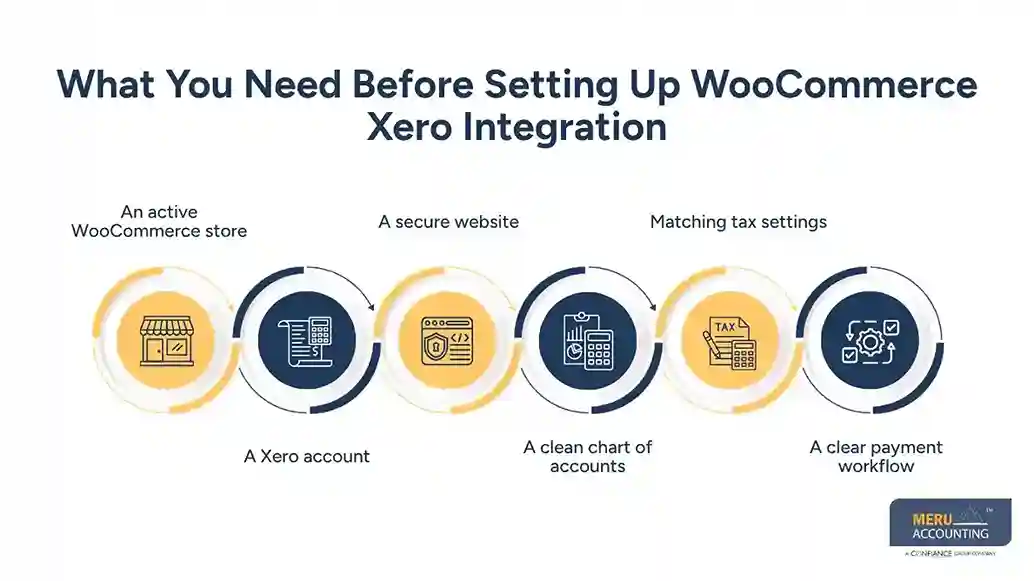
A clean chart of accounts
Review your Xero chart of accounts before you connect the store. Decide where product sales, shipping, fees, payments, refunds, and other items should go.
Matching tax settings
Your WooCommerce tax setup should match the tax setup used in Xero. A mismatch can lead to incorrect tax records or failed invoice syncs.
A clear payment workflow
Know how your payment gateways send money to your bank. A $100 WooCommerce order may not result in a $100 bank deposit if a payment processor takes a fee first.
This matters when you start reconciliation.
How to Set Up WooCommerce Xero Integration
The exact steps depend on the extension you use. The current official Xero extension for WooCommerce uses a Xero OAuth app to connect the two systems.
A typical setup looks like this:
Step 1: Install the Xero extension
Install and activate the WooCommerce Xero extension through your WooCommerce setup.
Step 2: Create the Xero app
In the Xero developer portal, create an OAuth app and enter the redirect URI shown by the WooCommerce Xero settings. You will then receive a Client ID and Client Secret for the connection.
Keep the Client Secret safe. Xero shows it only once when it is generated.
Step 3: Connect Xero to WooCommerce
Go to the Xero settings in your WooCommerce dashboard. Enter the required app details, save them, and sign in with Xero.
Choose the correct Xero organization when asked.
Step 4: Set your account codes
Set the Xero account codes for sales, shipping, fees, payments, and rounding. Use the codes from your own Xero chart of accounts rather than copying sample codes from a guide.
Step 5: Review tax mapping
Check that the WooCommerce tax rates match the tax rates in Xero.
Step 6: Test an order
Place a test order and check the Xero invoice, tax, payment, and account coding. A test is worth doing before you let a large number of orders flow into your books.
What Does Xero for WooCommerce Sync?
Xero for WooCommerce can send key order data from your store to Xero. The exact data depends on the extension you use and the settings you choose.
The official extension can send:
- Product details
- Sales amounts
- Shipping
- Discounts
- Taxes
- Payments
- Customer details linked to invoices
WooCommerce states that its Xero extension creates invoices for ecommerce sales and applies payments to the related invoice.
Some other tools offer a wider sync. For example, certain Xero integrations can sync orders, customers, products, inventory, and payments.
This is why you should not assume that every Xero for WooCommerce tool works the same way. Check what your chosen extension sends, when it sends it, and how it handles refunds and fees.
How to Record WooCommerce Sales in Xero
Once the WooCommerce Xero integration is active, your sales workflow should be built around how money actually moves through your store.
Suppose a customer places a $200 order. The order includes:
- $180 in products
- $20 in shipping
- $16 in sales tax
If a payment processor takes a $6 fee, the bank may receive $210 rather than the full order amount.
Your books need to show the sale, tax, and fee correctly. The bank deposit should not simply be recorded as sales income.
With Xero for WooCommerce, the order can flow into Xero based on your mapping. Your payment records can then be matched with the related invoices or payment account.
For refunds, check how your integration handles the credit or refund record. Do not create a second manual entry unless your workflow requires it.
The key is to make sure the accounting record explains the full transaction, not just the amount that reached your bank.
How to Reconcile WooCommerce Transactions in Xero
Reconciliation is where many ecommerce bookkeeping errors become visible.
A WooCommerce order total, payment processor payout, and bank deposit may all show different amounts. That does not always mean something is wrong.
For example:
WooCommerce order: $500
Payment fee: $15
Processor payout: $485
Bank deposit: $485
If you record only the $485 deposit as sales, your revenue will be understated.
With WooCommerce Xero integration, start by checking that the sales and payment records reached Xero correctly. Then compare the payment processor report with the Xero payment account and the bank statement.
Look for:
- Missing orders
- Duplicate orders
- Refunds
- Payment fees
- Partial payments
- Failed payments
- Payout timing differences
- Tax differences
- Currency differences
Do not force a transaction to match just to clear the bank feed. Find the reason for the difference first.
A clean Xero for WooCommerce workflow should make reconciliation easier, but it does not remove the need to review the records.
Xero Bookkeeping Services for WooCommerce by Meru Accounting
Setting up the connection is only one part of ecommerce bookkeeping. Your books still need regular review, reconciliation, and cleanup as order volume grows.
At Meru Accounting, our Xero services for WooCommerce can cover the accounting work around your store, including:
- WooCommerce sales bookkeeping
- Xero setup and account mapping
- Bank and payment account reconciliation
- Payment processor fee tracking
- Accounts receivable support
- Sales tax record support
- Refund and adjustment review
- Monthly financial reports
- Catch-up and cleanup bookkeeping
- Tax-ready financial records
We can also work with the tools and process already used by your store. That matters when your WooCommerce site has more than one payment gateway, sales channel, or payout flow.
The goal is to keep the WooCommerce data, Xero records, and bank activity tied together so you can review your numbers without sorting through spreadsheets each month.
Our Expert Insight
One issue we often see in ecommerce books is a mismatch between the date of the sale and the date the cash reaches the bank. A WooCommerce order may be placed today, refunded later, or paid out by the processor days after the sale. If these events are booked by bank date alone, your monthly sales and cash numbers can fall out of line.
Before you rely on WooCommerce Xero integration, set up clear rules for sales, refunds, payment fees, taxes, and processor payouts. Then compare a few real orders from WooCommerce to the related Xero entries and bank deposits. This test can catch duplicate sales, missing fees, and unmatched payouts before they affect a full month of books.
We also recommend checking how inventory and COGS are recorded. A sales feed can show revenue in Xero without giving you the right cost for each sale. For stores with regular stock purchases, returns, or more than one sales channel, that gap can make gross profit look better or worse than it really is.
Key Takeaways
- WooCommerce Xero integration can reduce manual sales entry.
- Set up your Xero chart of accounts before connecting the store.
- Match WooCommerce tax settings with Xero.
- Test sales, fees, refunds, and payments before going live.
- Xero for WooCommerce can send key order and payment data to Xero.
- Payment processor fees should not be treated as lost sales.
- Reconcile processor payouts with Xero and your bank.
- Review inventory and COGS separately when your store needs detailed inventory accounting.
- Regular bookkeeping review keeps the integration useful as your store grows.
FAQs
Yes. WooCommerce has a Xero add-on that links your store to Xero and sends sales data to your account.
Xero for WooCommerce can send sales, items, shipping, discounts, tax, and payment data to Xero, based on your add-on and setup.
It can, based on your add-on and setup. Check how fees are mapped so you can match bank payouts to your books.
Match your WooCommerce orders and payment reports with Xero data and bank deposits. Check fees, refunds, and time gaps before you match each payout.
The link cuts down on data entry, but it does not replace a bookkeeper. A bookkeeper can check account maps, match payouts, review fees and refunds, and keep your books ready for tax and reports.
optional anymore
on running the business